Contract
The Contract is a function on the ERP system that allows the user to store the general information of the actual Contract signed with the customer; (including a scanned copy of the signed contract);
Some general information of the Contract when entered into the system is used to inherit the Sales Order records (For example: account information, booking information)
1. Basic information:
The following information is necessary and should be created before creating the Contract: (if not available before, it can be created during the selection of the corresponding item)
Customer
Salesperson
Bank account
Payment term
Port of loading
Port of discharge
Final destinations
2. Steps to follow:
Step 1: Access the function of creating new Contract on the system by following the link: Home page => Selling => Contract => Add Contract:
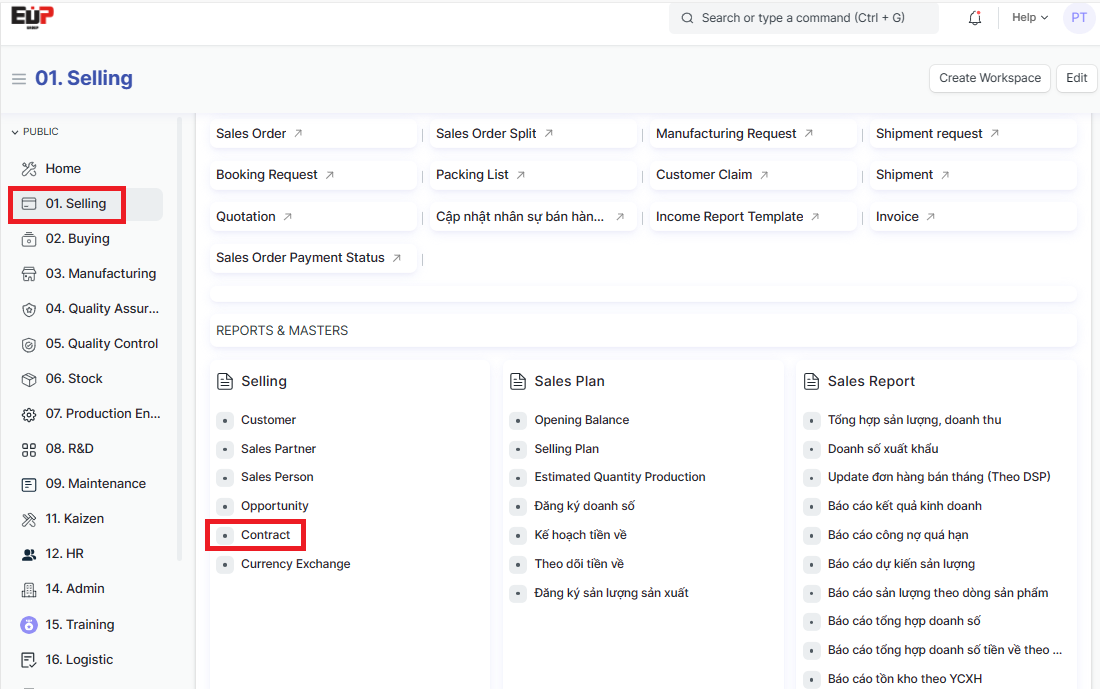
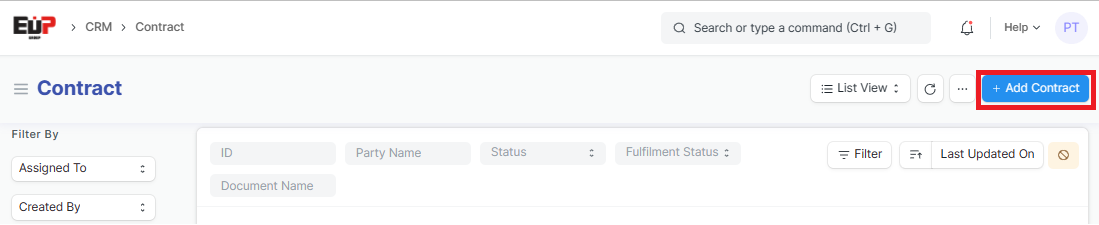
Step 2: Enter the general informations of the Purchaser (Fields marked with * are required fields):
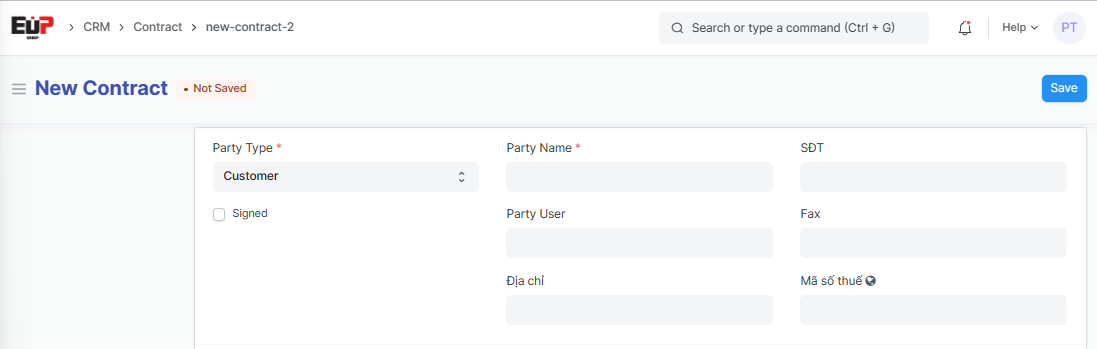
Party Type: Choose Customer
Party Name: Enter Customer name if it's the new Customer, or Select from the available list
Party User: (Don't need to enter)
Địa chỉ (Address): (Don't need to enter)
SĐT (Phone No):
Fax:
Mã số thuế (Tax code):
Signed: Select if the contract has been signed
Step 3: Enter the general informations of the Salesman:
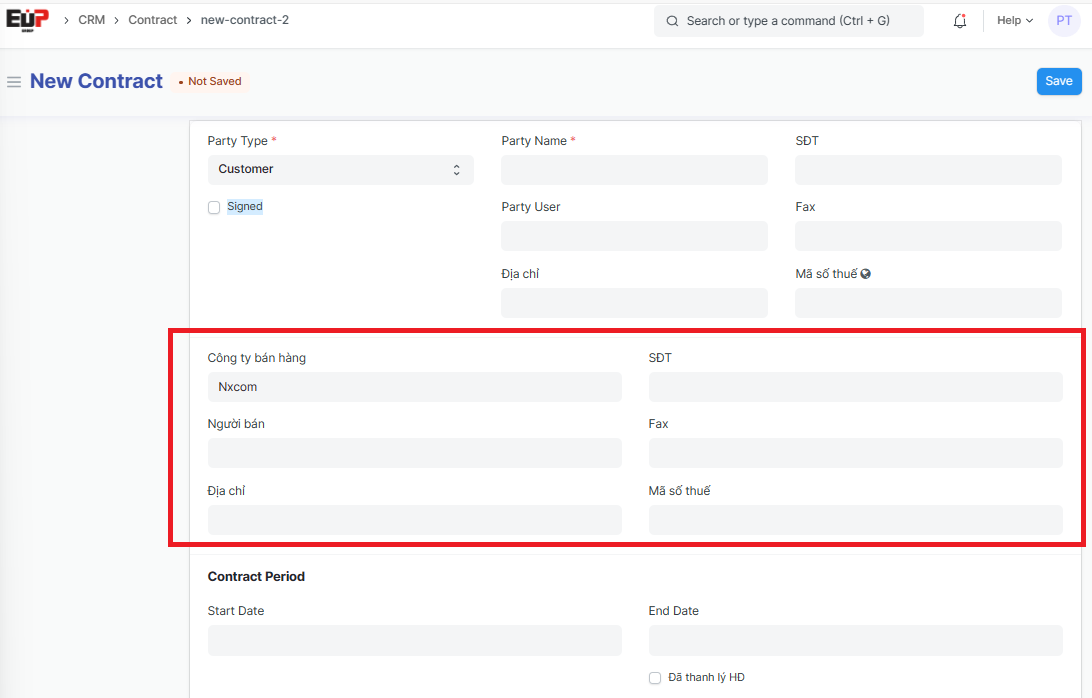
Công ty bán hàng (Company): Enter company name as sales legal entity
Người bán (Salesperson): Enter salesperson name
Địa chỉ (Address):
SĐT (Phone No):
Fax:
Mã số thuế (Tax code):
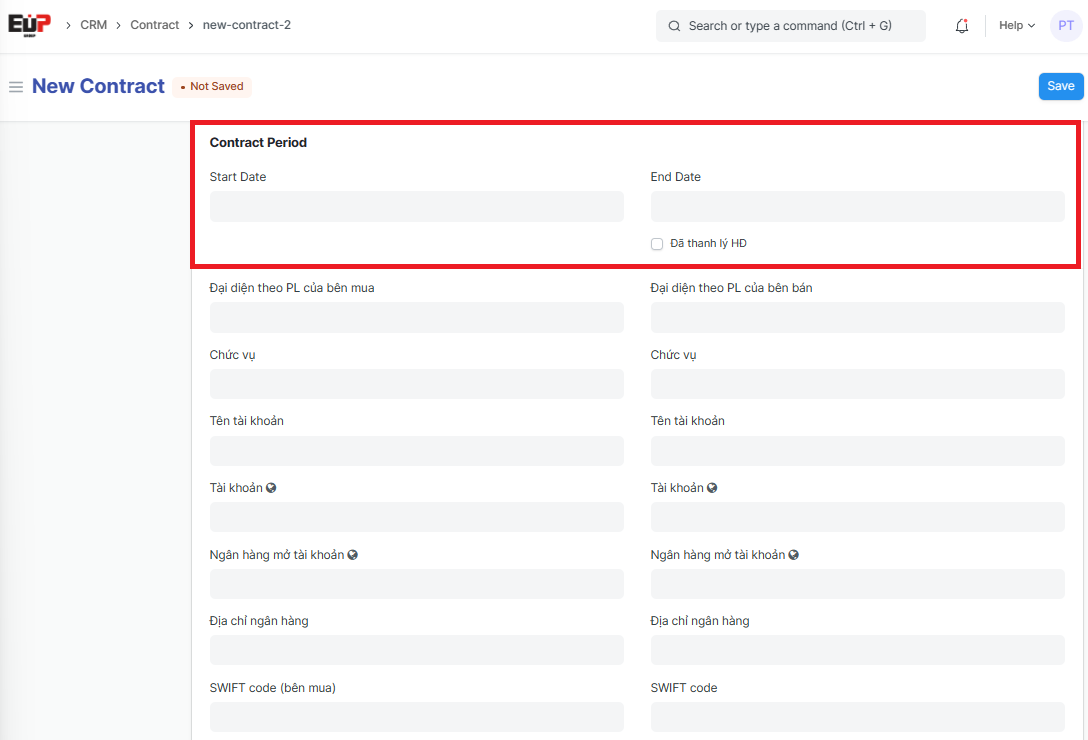
Step 4: Enter Contract term information:
Start Date:
End Date:
Đã thanh lý HĐ (Liquidated): Select "Liquidated" if the contract has been Liquidated
Step 5: Enter informations of the Purchaser and Salesman (Fields marked with * are required fields):
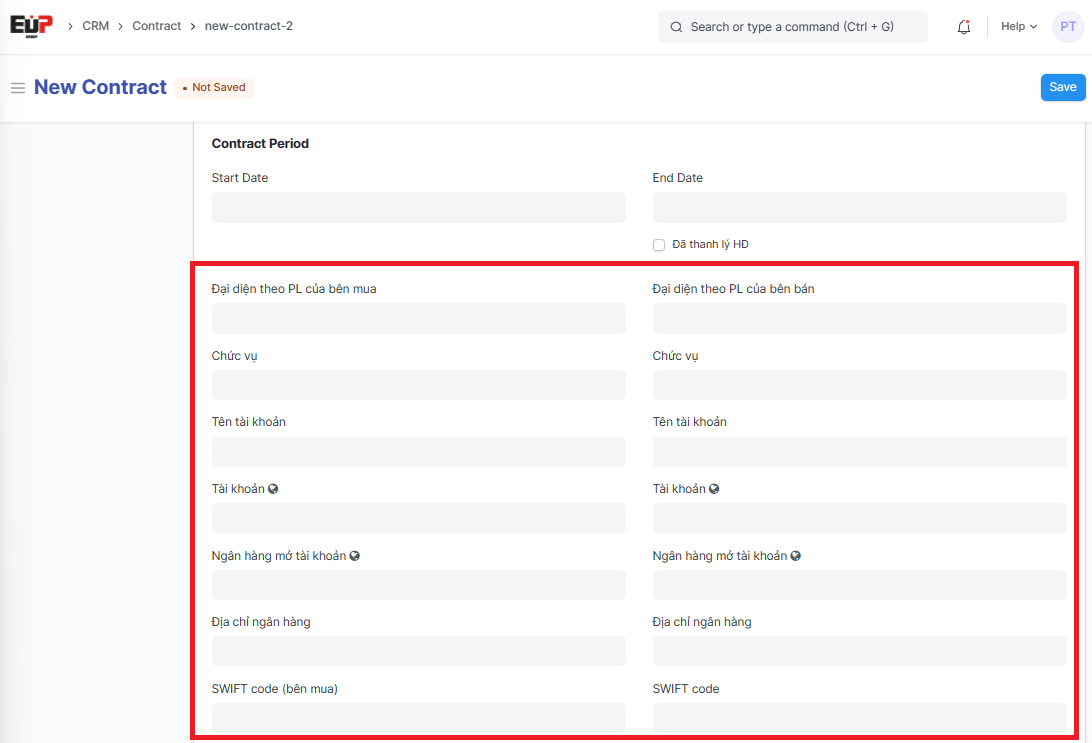
Đại diện theo PL của bên mua (Legal representative of the purchaser):
Chức (Position):
Tên tài khoản (Account name):
Tài khoản (Account):
Ngân hàng mở tài khoản (Bank name):
Địa chỉ ngân hàng (Bank address)
SWIFT code (bên mua - Purchaser):
Đại diện theo PL của bên bán (Legal representative of the Salesman):
Chức (Position):
Tên tài khoản (Account name):
Tài khoản (Account):
Ngân hàng mở tài khoản (Bank name):
Địa chỉ ngân hàng (Bank address)
SWIFT code (bên bán - Salesman):
Step 6: Click on "Add row" to add one line => Click on "Edit" to Enter Payment term informations:
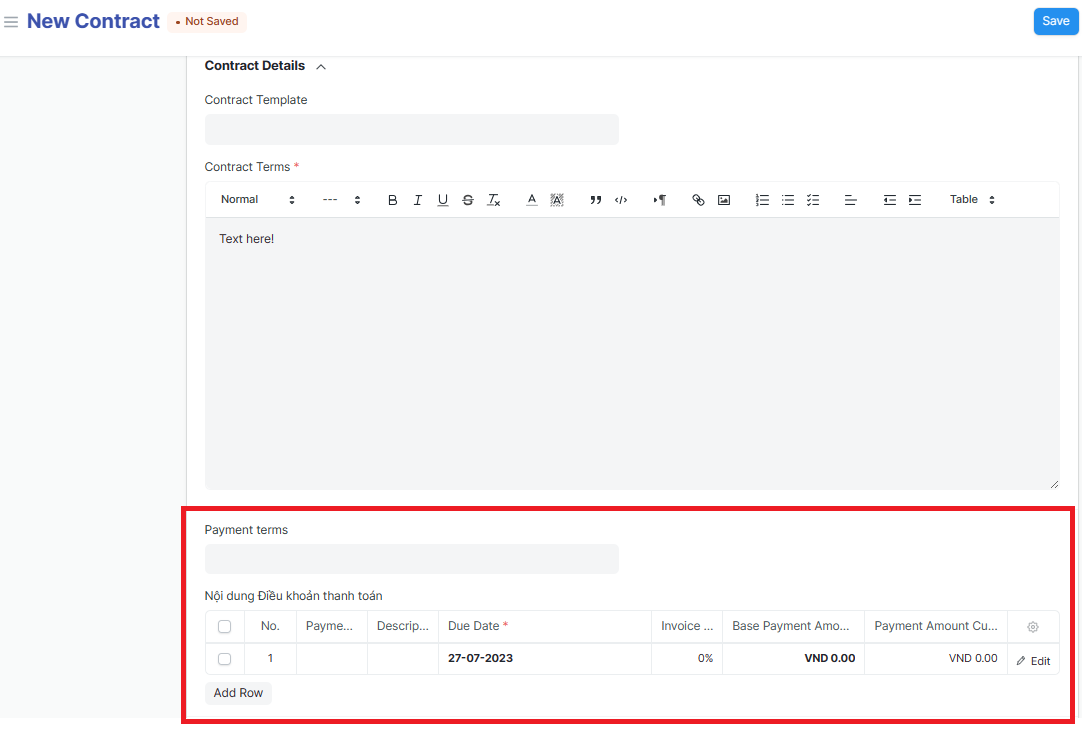
Step 7: Enter the Payment term informations (Fields marked with * are required fields):
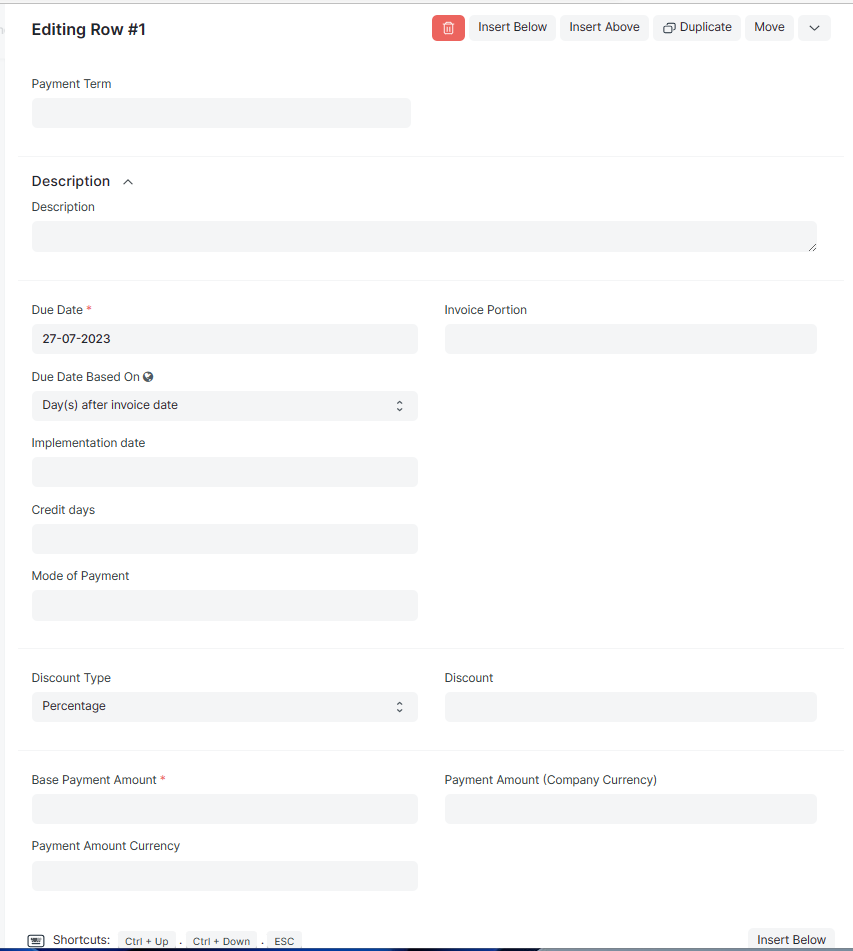
Payment Term: Select from the available list or create a new one
Description: Enter informations if need
Due Date:
Invoice Portion:
Due Date Based On: Select from the available list
Implementation date:
Credit days:
Mode of Payment: Select from the available list
Discount Type: Choose Percentage or amount
Discount:
Base Payment Amount:
Payment Amount Currency:
Payment Amount (Company Currency):
Step 8: Enter Booking informations (if any):
The Booking informations, if updated, will be used for succession in the Booking information section of the Sales Order created later associated with the created contract
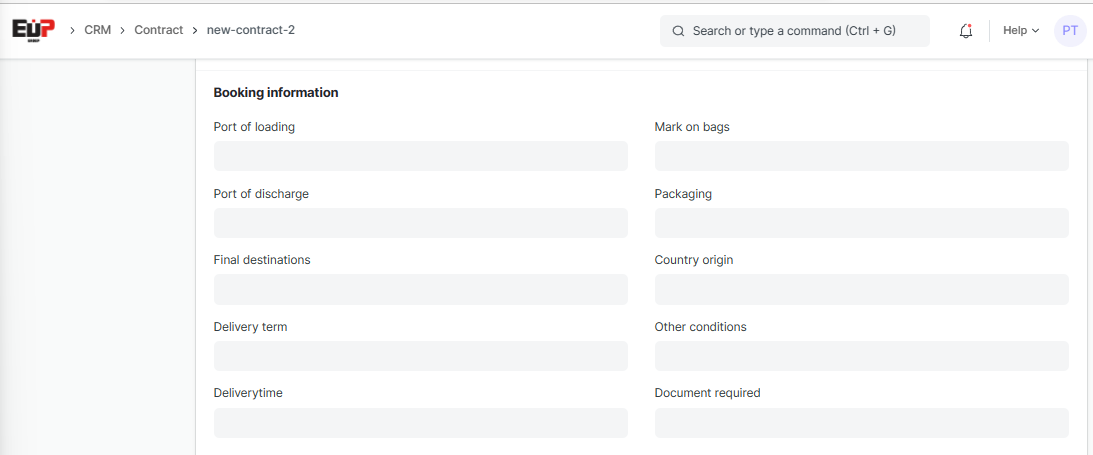
Port of loading: Select from the available list or create a new one
Port of discharge: Select from the available list or create a new one
Final destinations: Select from the available list or create a new one
Delivery term:
Deliverytime:
Mark on bags:
Packaging:
Country origin:
Other conditions:
Document required:
Step 9: Enter other informations and attach scanned files or related documents if any:
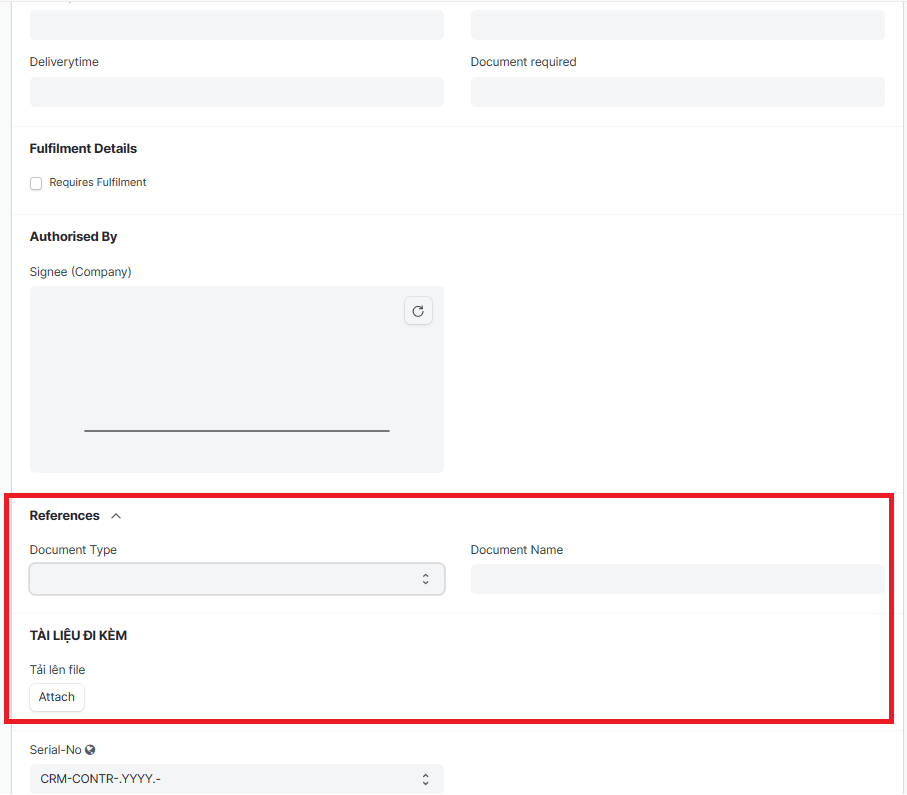
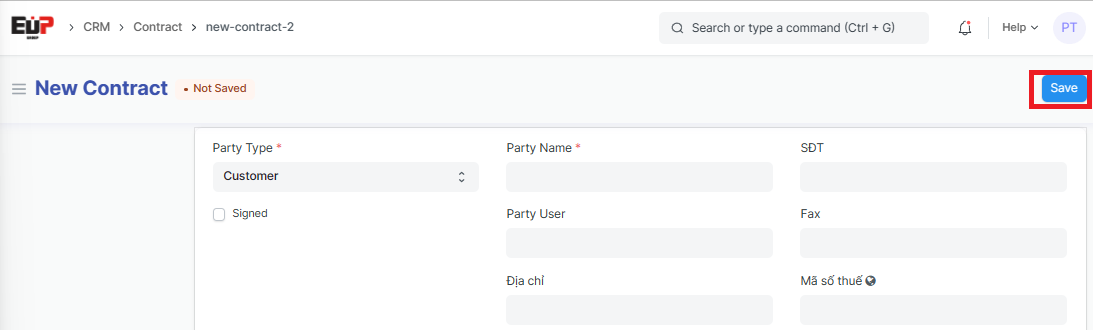
Step 10: Click on "Save" to save the genarated Contract