Invoice
1. Basic information:
The following information is necessary and should be created before creating the Invoice: (if not available before, it can be created during the selection of the corresponding item)
Customer
Term
SO / PI Number
Item
Insurance type rate
2. Steps to follow:
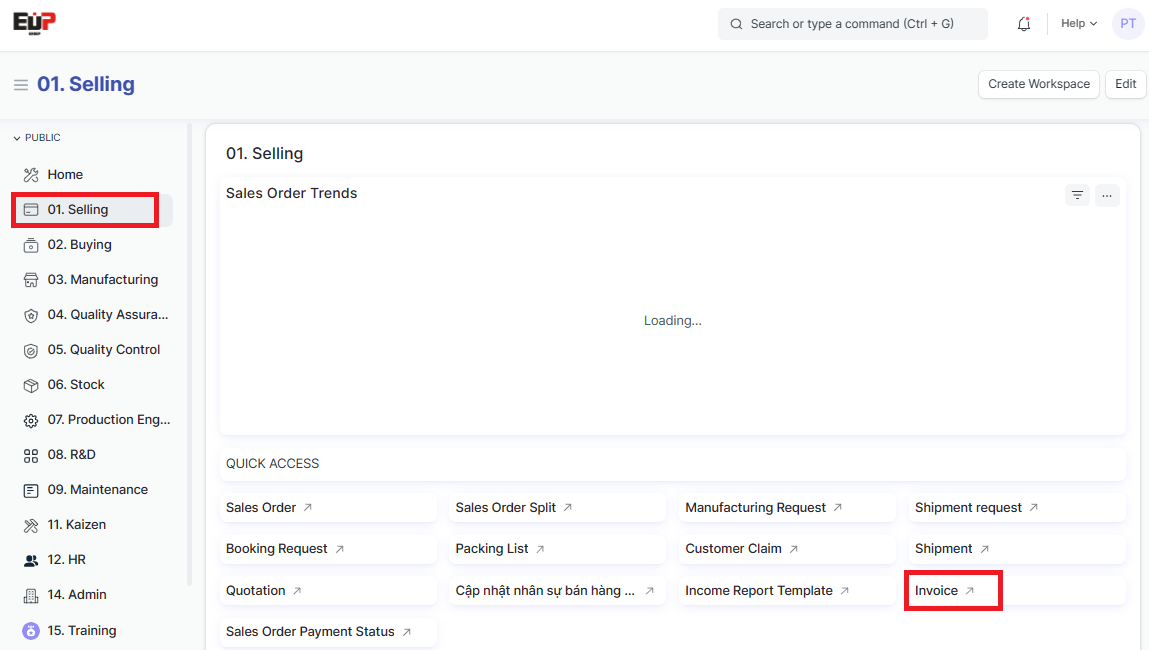
Step 1: Access the function of creating new Contract on the system by following the link: Home page => Selling => Invoice => Add Document Invoice:

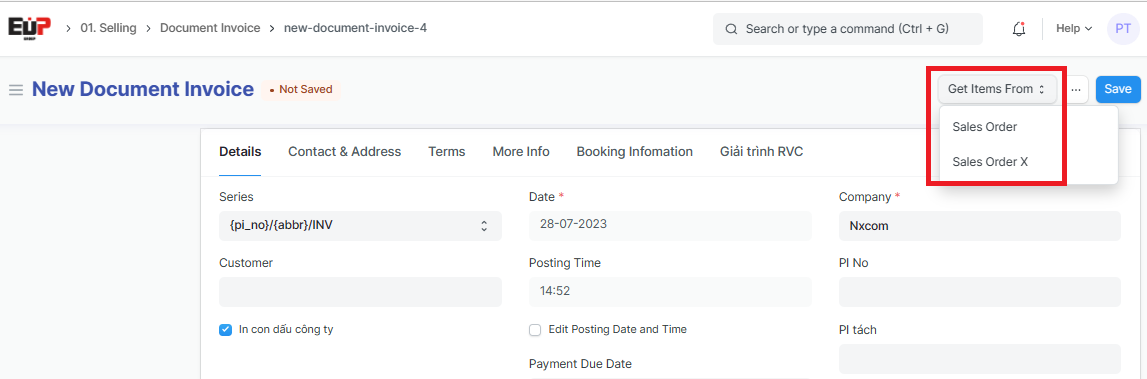
Step 2: Click on "Get items from" => Select "Sales Order" or "Sales order Split":
Step 3: Invoice data: In order for the system to automatically fill in the selected "Sales Order"/ "Sales Order Split" data into the "Document Invoice", users can do one of two ways:
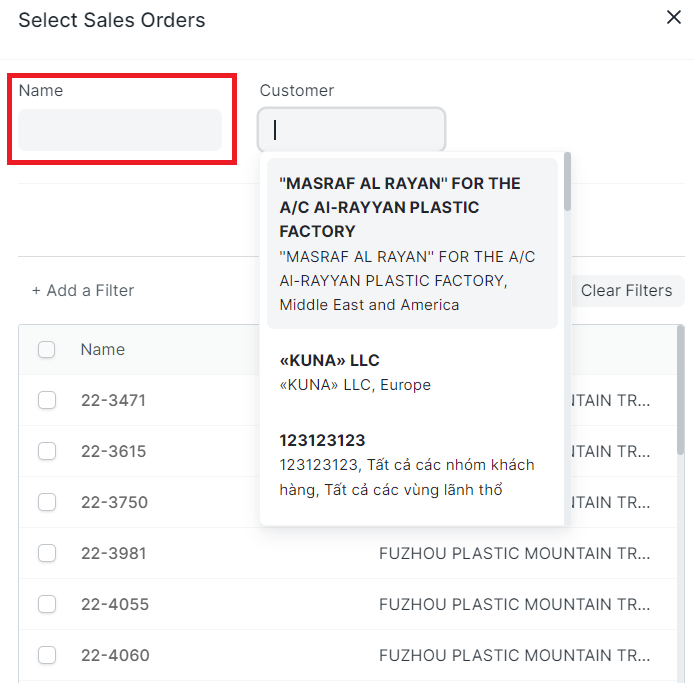
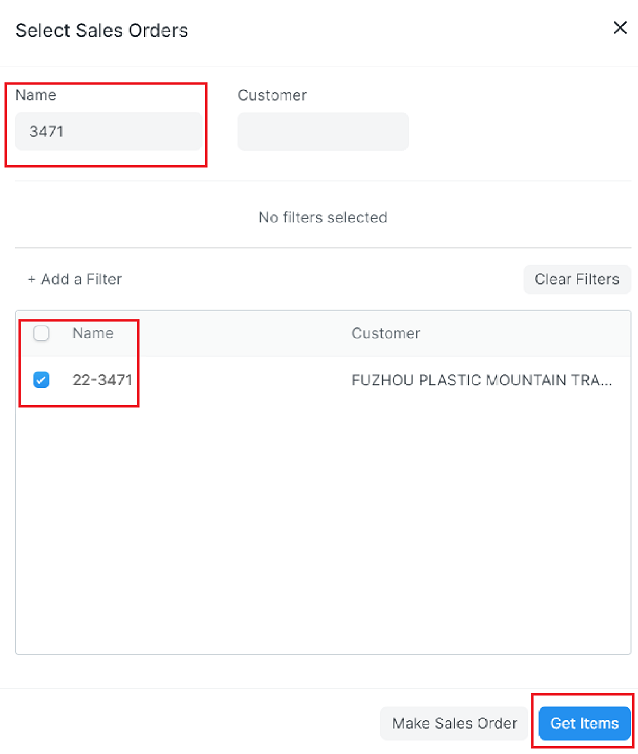
Enter "Sales Order"/ "Sales Order Split" number to create an invoice in the Name field => select "Sales Order"/ "Sales Order Split" number in the Name table => Click on "Get items" for the system to automatically fill the data of the selected "Sales Order"/ "Sales Order Split" in the "Document Invoice":
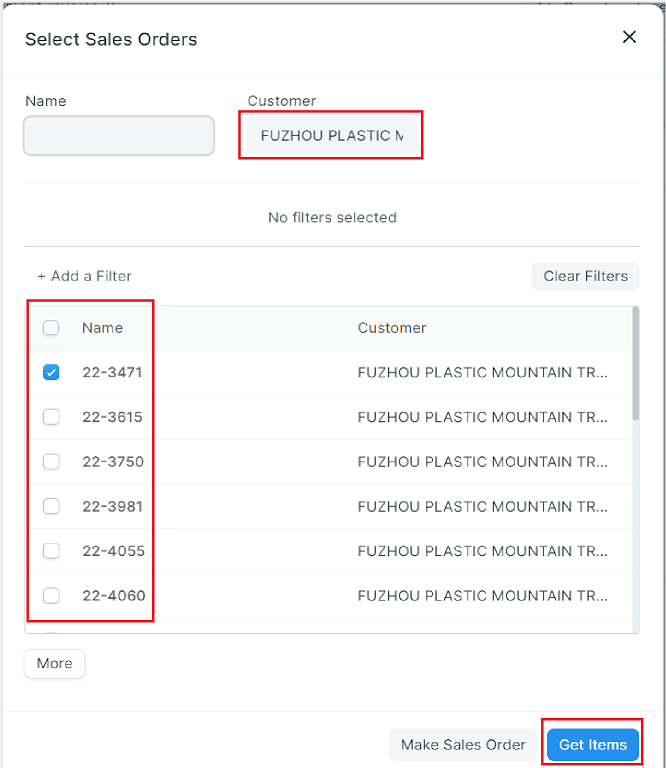
Or select Customer in the Customer field => select "Sales Order"/ "Sales Order Split" number to create an invoice in the Name table => Click on "Get items" for the system to automatically fill the data of the selected "Sales Order"/ "Sales Order Split" in the "Document Invoice":
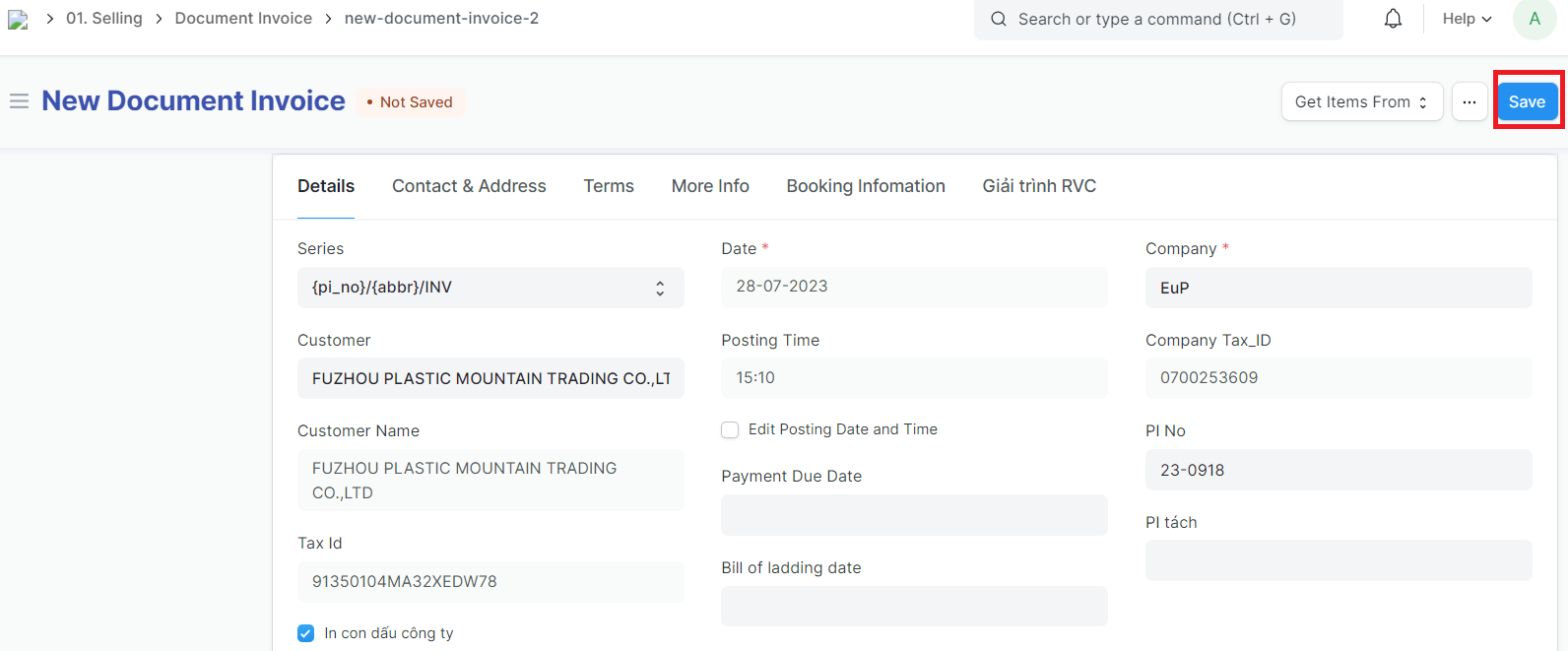
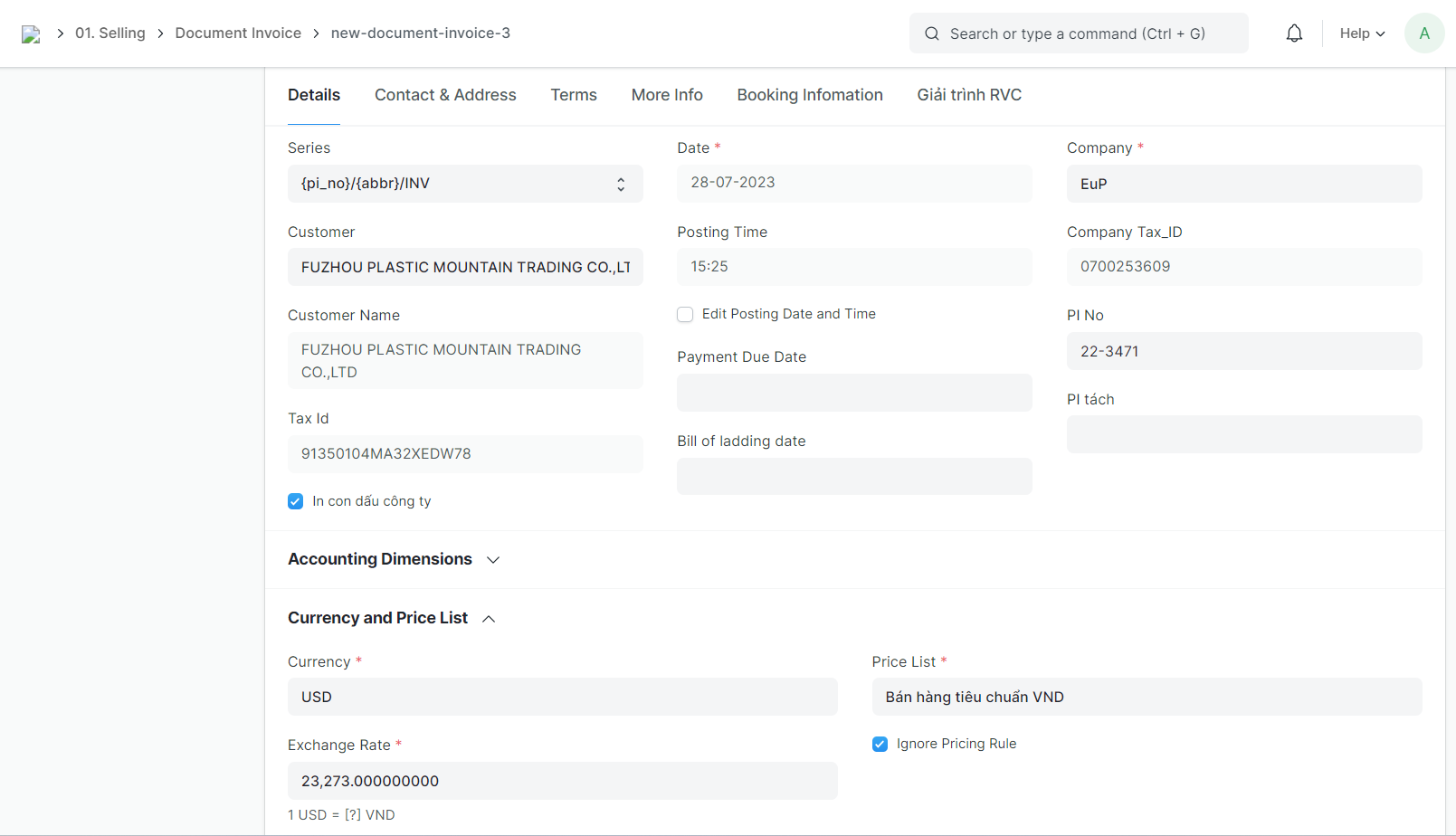
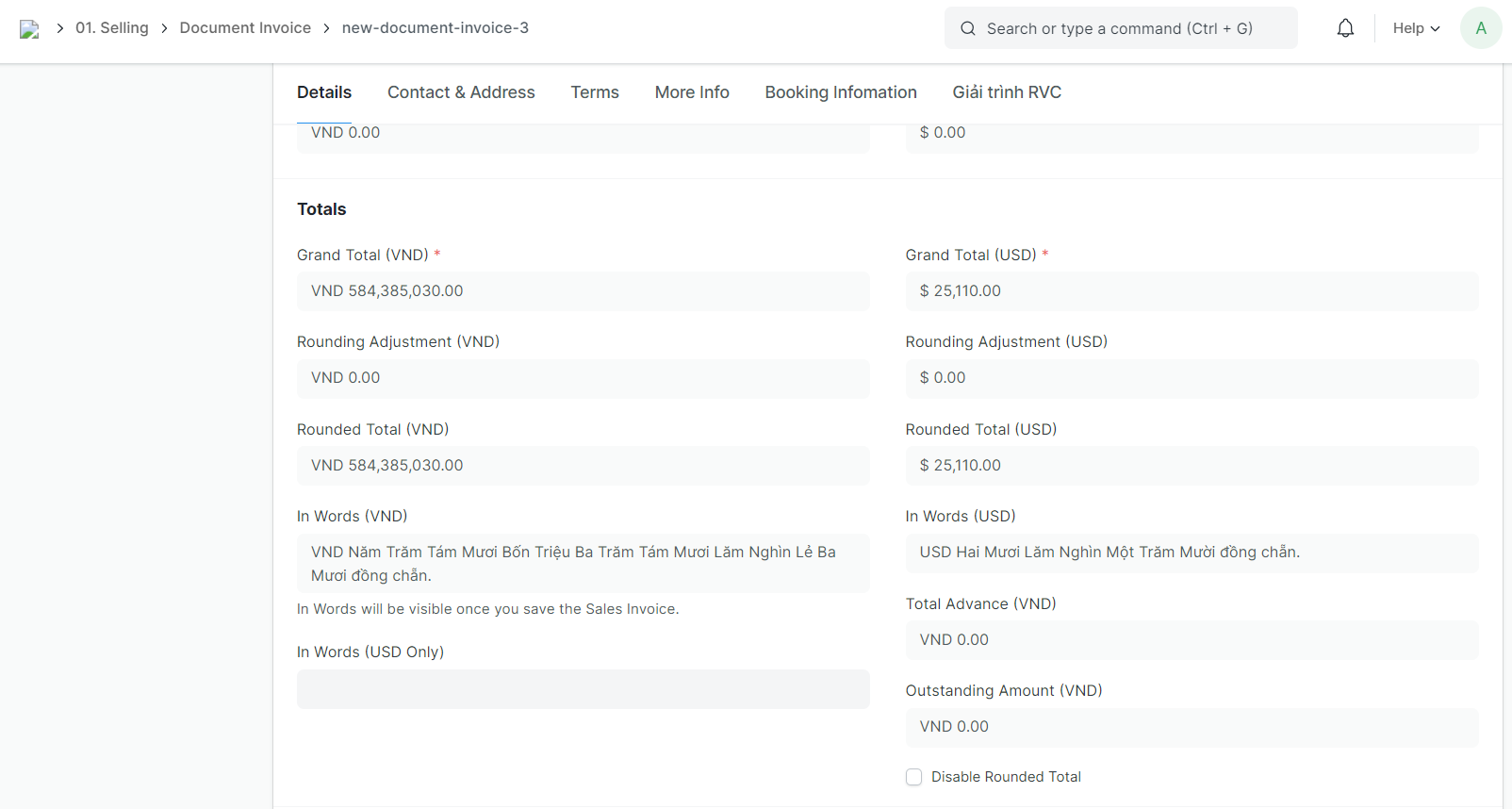
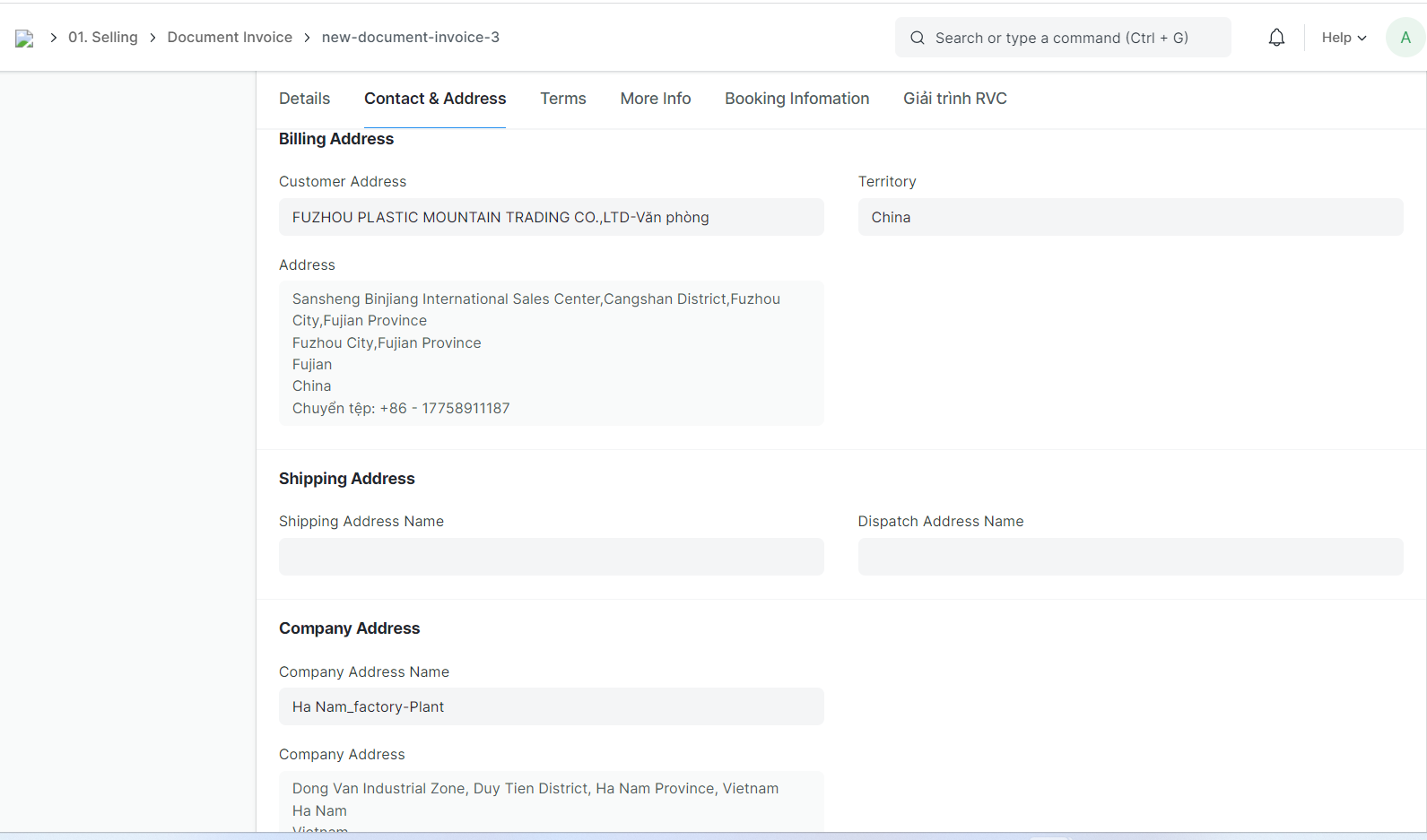
Step 3: Check the information that the system has automatically filled in after selecting the "Sales Order"/ "Sales Order Split" number to create an "Document Invoice", edit the information if necessary (For example: Details, Contact & address, Terms...)
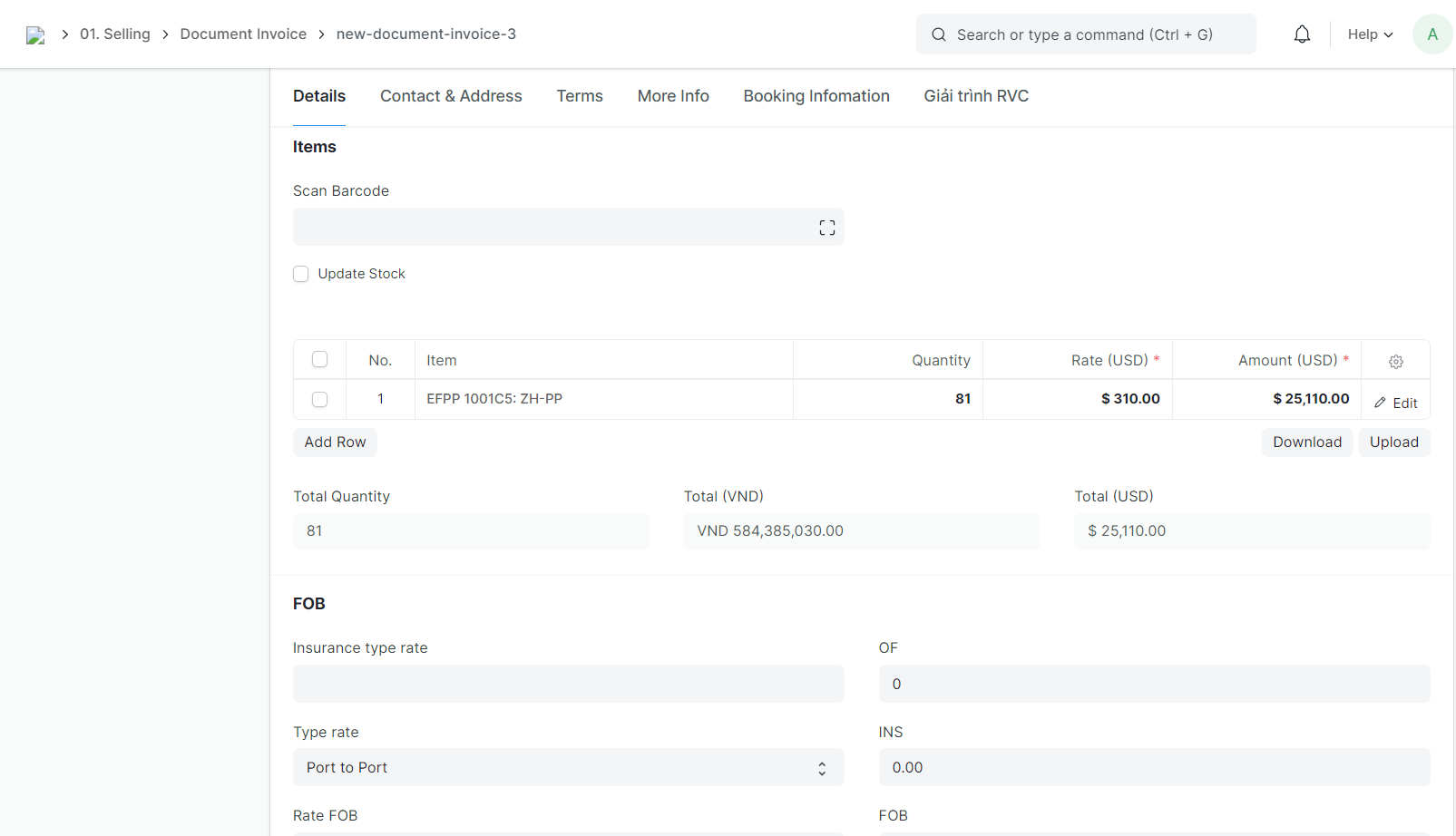
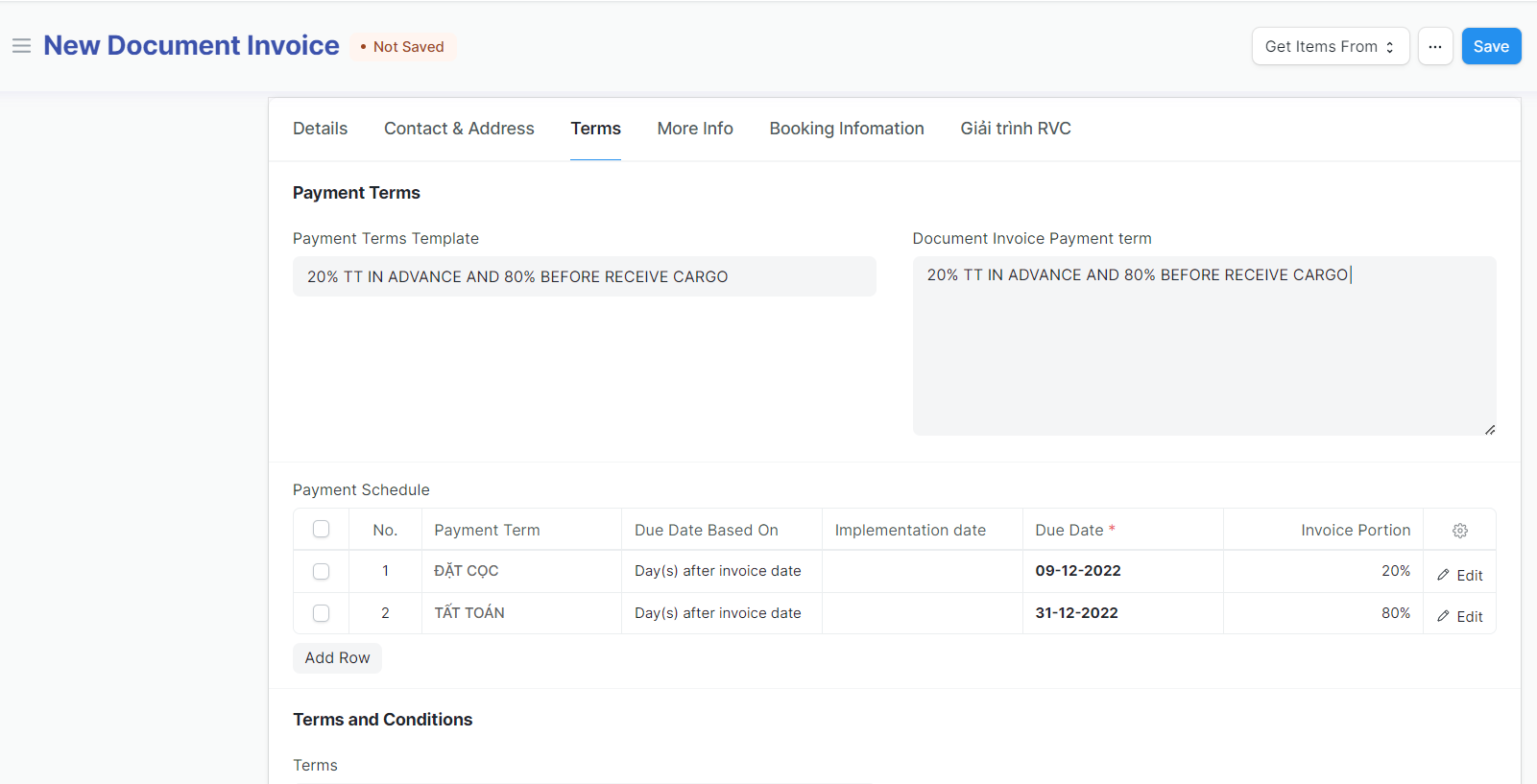
Step 4: Click on "Save" to save the genarated "Document Invoice"