Sales order
After discussing with customers about the selling price, item…. Sales staff need to create a Sales order to record the expected order; Sales order on the system can be generated from Quotation; or create without Quotation
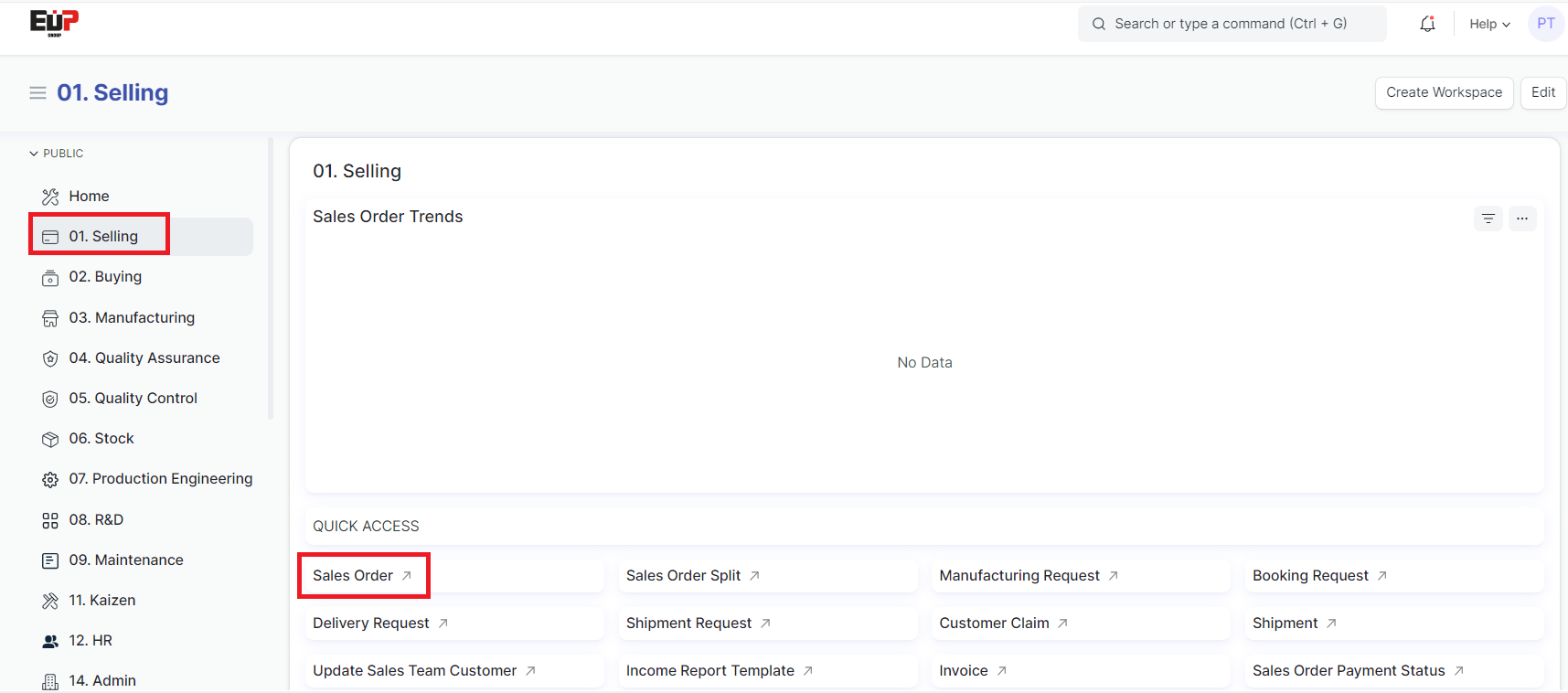
Access the function of creating new Sales order on the system by following the link: Home page => Selling => Sales order
1. Basic information:
The following information is necessary and should be created before creating the Sales Order: (if not available before, it can be created during the selection of the corresponding item)
Customer
Customer address
Item
Payment term
Sale price list
Production price list
2. Steps to follow:
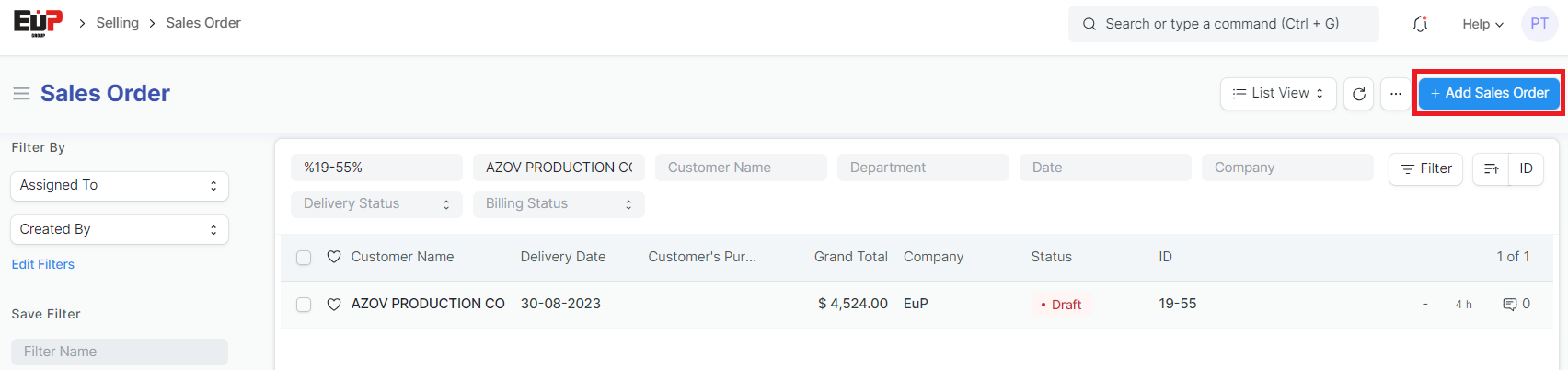
Step 1: Access the function of creating new Sales order on the system by following the link: Home page => Selling => Sales order => Add Sales order
Step 2: Enter the Customer information and sales legal entity at tab "Details" (Fields marked with * are required fields):
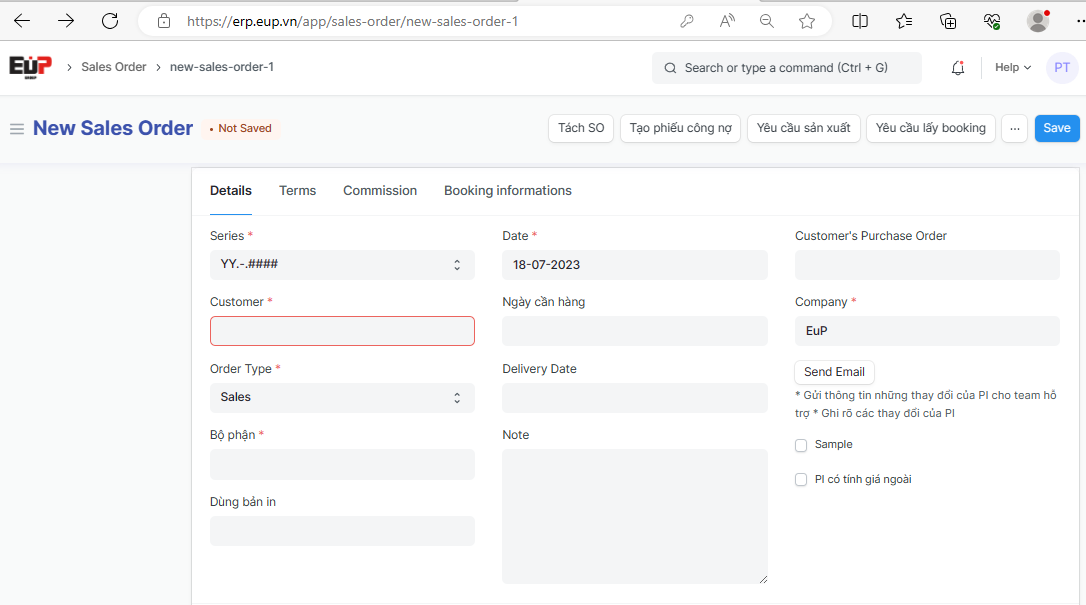
Series: The system will generate automatically
Customer: Choose available Customer; or drag the cursor down to the end => Click on "Create a new Customer” to create a new Customer
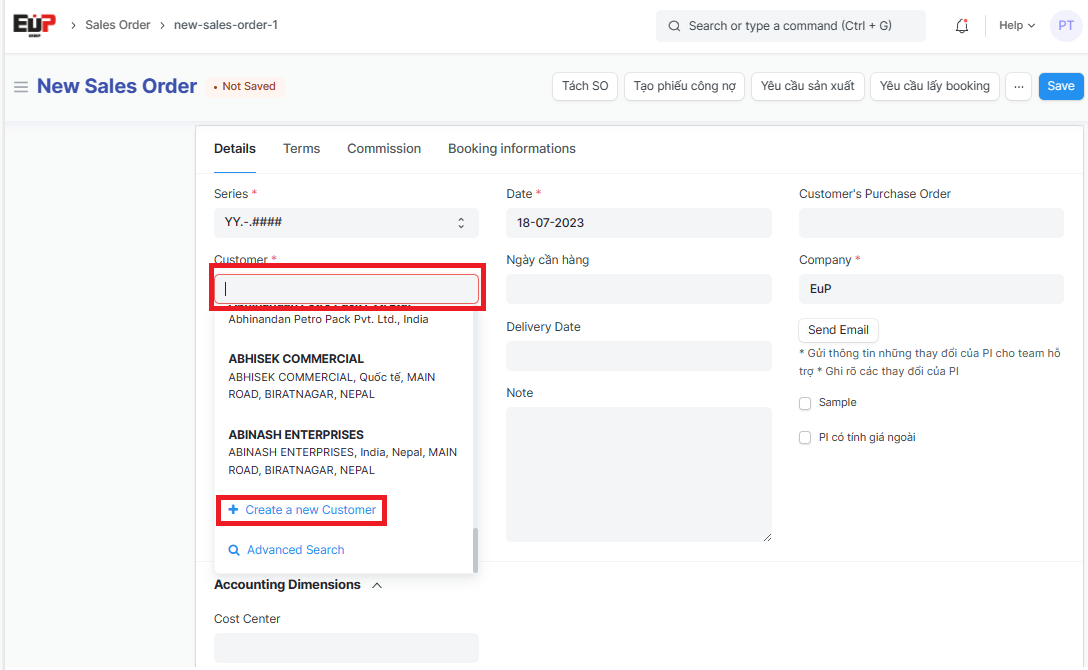
Order Type: Default to Sales, User can choose other order type if needed
Bộ phận (Deparment): default according to user's department, user can choose other Deparment
Dùng bản in (Use print): Choose the print to use
Date: Enter the order creation date
Ngày cần hàng (Date of need): Enter the required date to have merchandise in stock
Delivery Date: Enter estimated delivery date
Note: Enter relevant informations if needed
Customer's Purchase Order: Enter the PO number and the customer PO date if available (or need to track)
Company: Enter the sales legal entity (default according to user's company)
Step 3: Enter Currency and Price List:
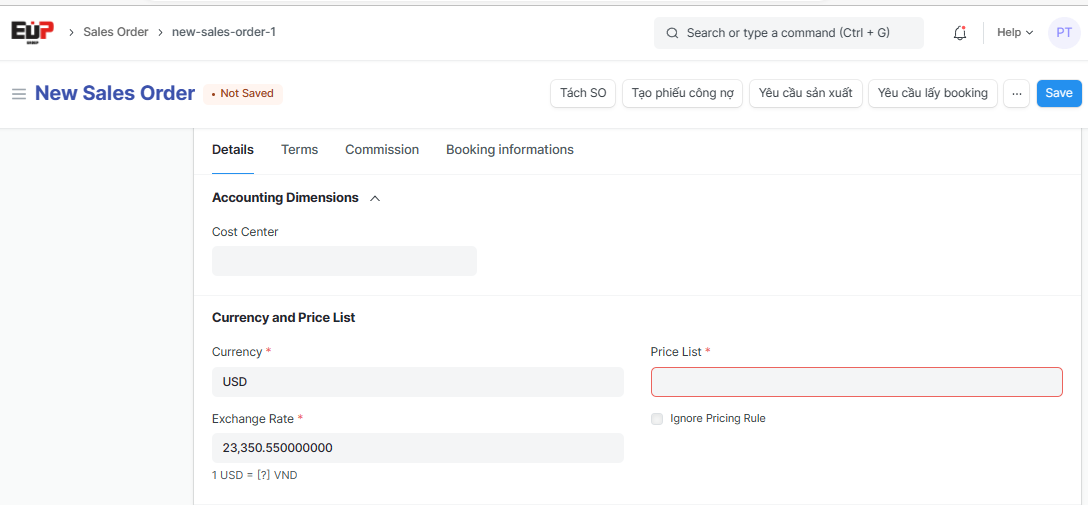
Currency: Select the currency of the Sales order (Default to VND); If the currency is a foreign currency, the system shows the exchange rate
Price List: Default to standard Sales Price List
Exchange Rate: Enter the Exchange Rate if the currency is a foreign currency.
Step 4: Click on "Add row" to add one line, Click on "Edit" to Enter merchandise details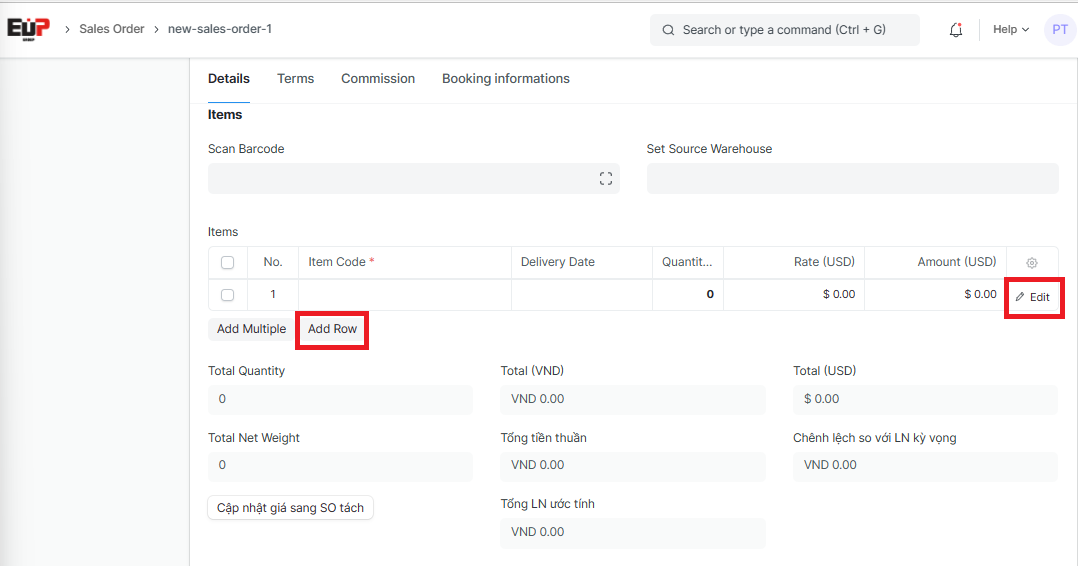
Step 5: Enter merchandise details:
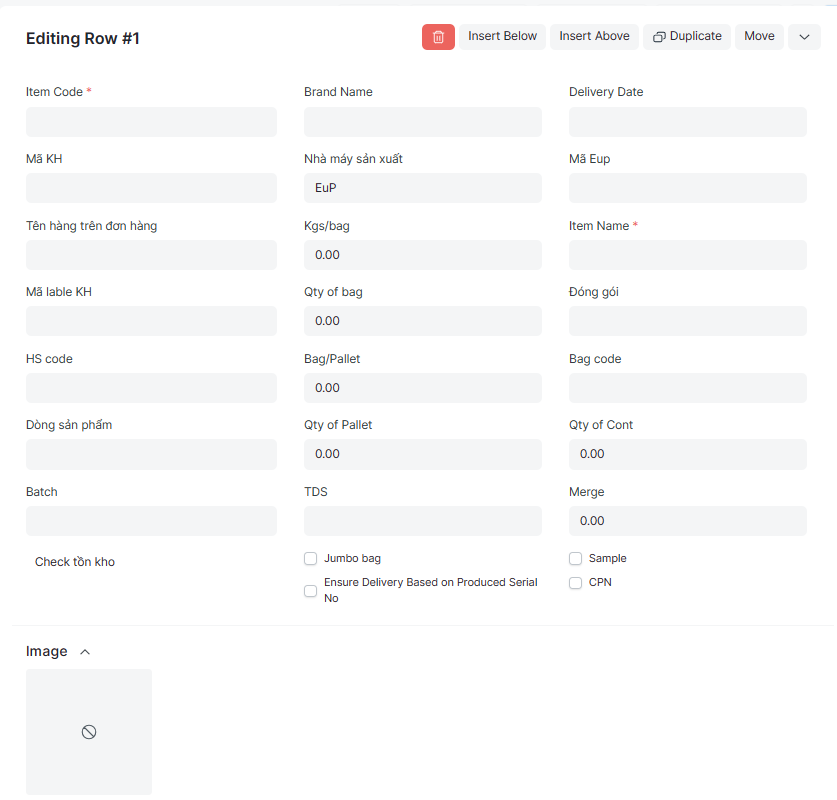
Item Code: Is the production code
Mã KH (Customer code):
Tên hàng trên đơn hàng (Item name on Sales order):
Mã lable KH (Customer lable code):
HS code:
Dòng sản phẩm (Production type):
Batch: Production batch number (if specified)
Brand Name:
Nhà máy sản xuất (Factory):
Kgs/bag: Kilograms per bag
Qty of bag:
Bag/Pallet: Bag per pallet
Qty of Pallet:
TDS:
Delivery Date: Enter estimated delivery date
Mã Eup (EUP code):
Item Name:
Đóng gói (Packing):
Qty of Cont:
Jumbo bag: Select if the items are packed in jumbo bags
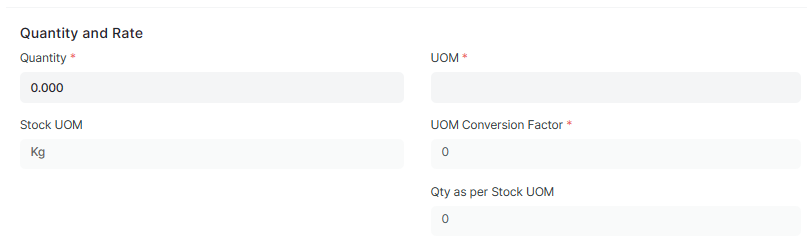
Step 6: Enter the quantity and UOM of the product: The system's default UOM is kilogam (in inventory UOM)
Step 7: Enter the unit price and other prices
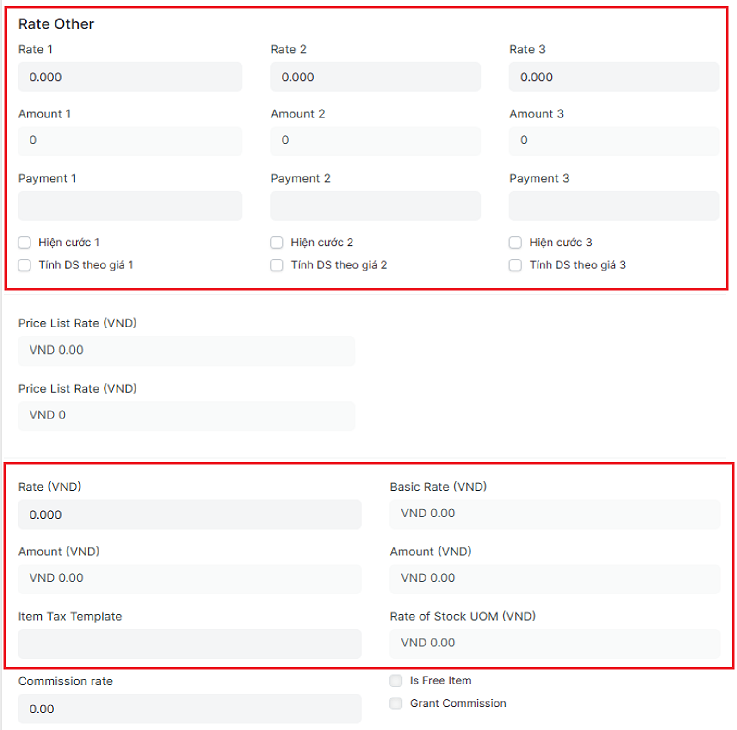
The selling price of the product is the price in the "Rate" field; This is the main price that will show on the printout PI
In case you want to display many different prices and calculate sales at prices different from the prices entered in the "Rate" field, enter other prices in the "Rate 1"', “Rate 2“… and tick the box “Tính DS theo giá” (calculate sales at the price of...) to calculate sales according to the corresponding rate
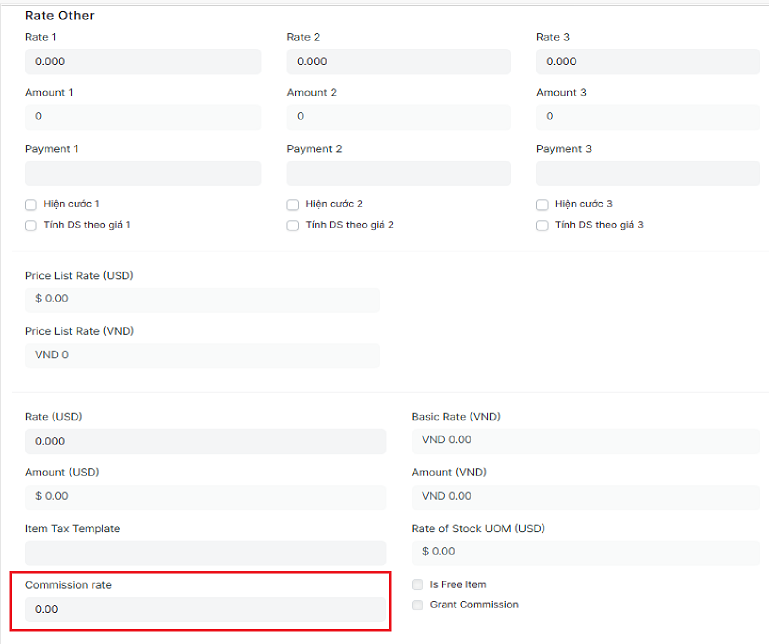
Step 8: Enter the commission in case the commission is calculated according to each item code: In case the commission is calculated according to the percentage, enter the commission percentage in the "Commission rate" field.
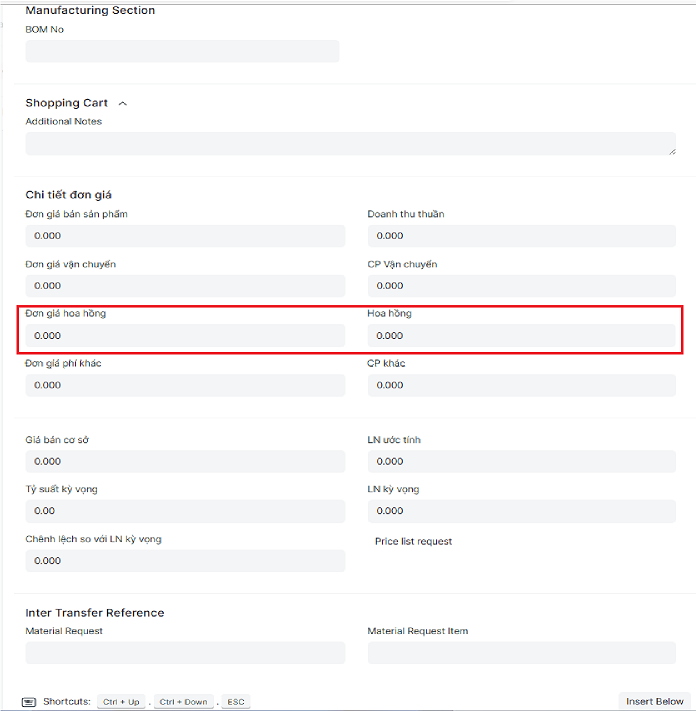
In case the commission is calculated by value, enter the commission rate per unit of goods in the "Đơn giá hoa hồng - Commission price"
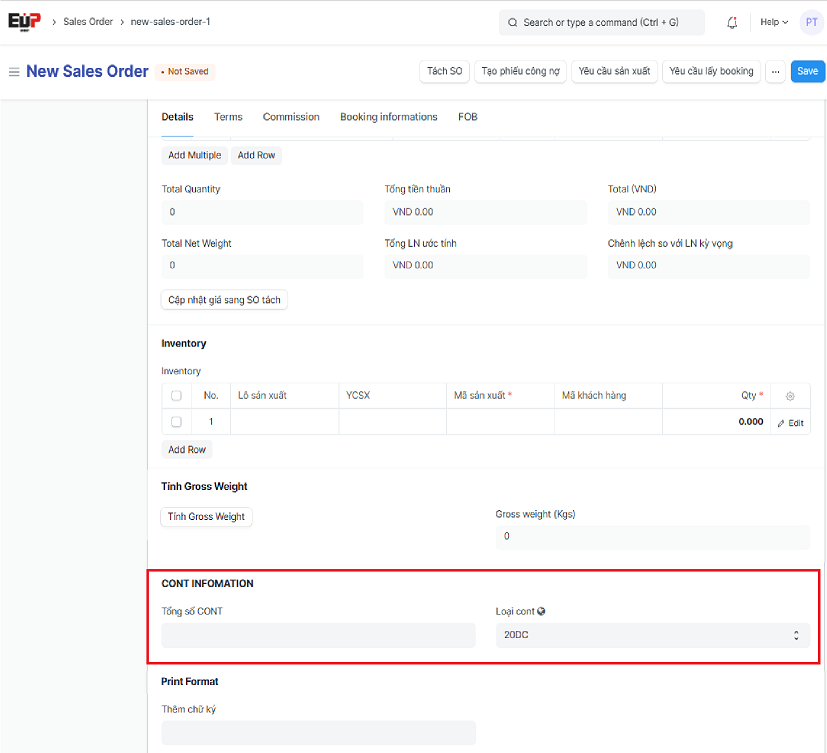
Step 9: Calculate the gross weight and enter the total Qty of cont, cont type if the sales order is a full cont
After entering the details, or after changing the items on the closed PI (adding quantity, adding new item...) you need to click on "Tính Gross weight - Calculate Gross weight" to the system update Gross weight of the sales order.
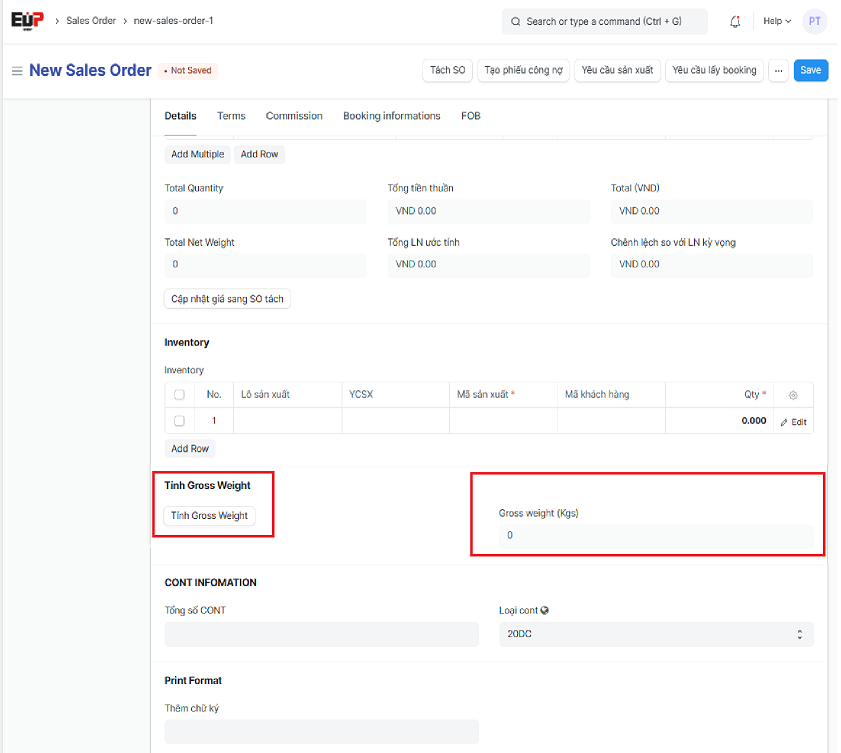
In case of full cont, it is necessary to enter the total Qty of cont and type cont for the sales order
Step 10: Enter Customer Address & Contact after entering the customer name in step 1
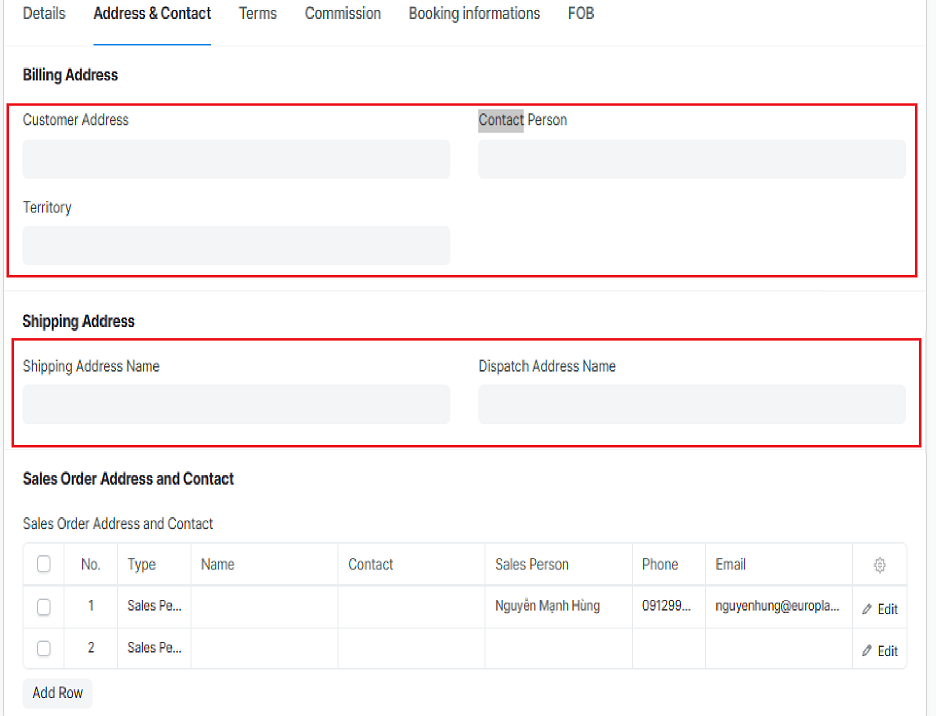
Contact Person:
Territory:
Shipping Address Name:
Dispatch Address Name:
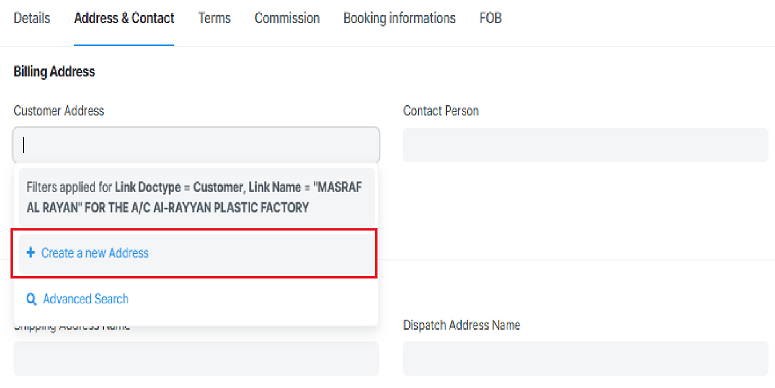
Customer Address: Customer address is created if there is no information click "Create a new address" to creat customer address
Step 11: Enter Sales Order Address and Contact
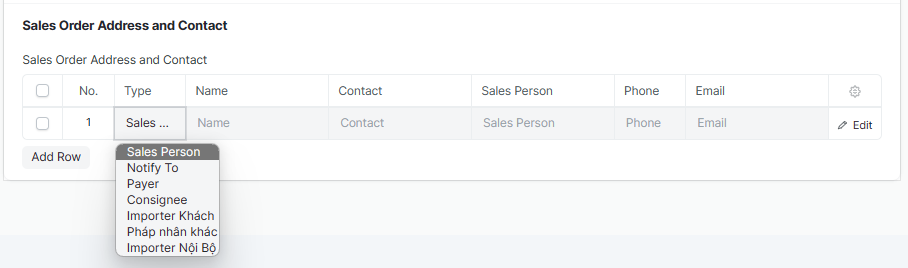
Type
Name
Contact
Sales Person
Phone
Email
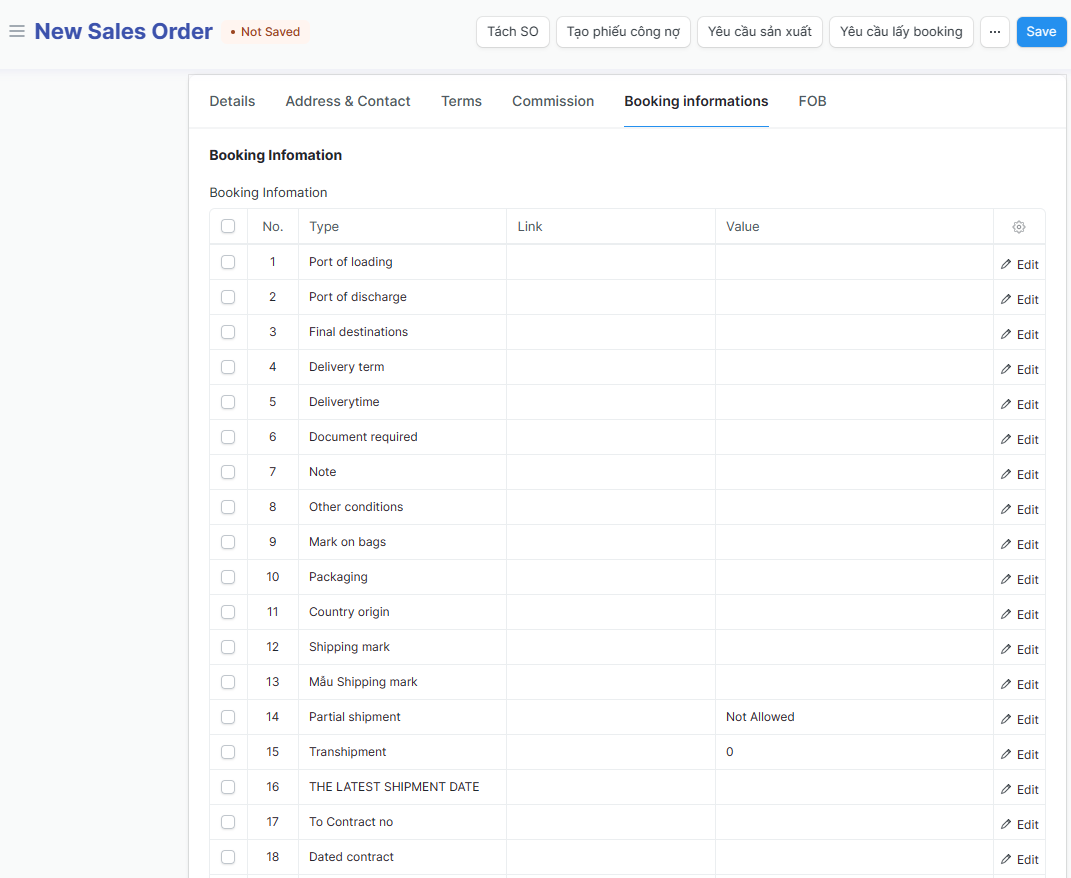
Step 12: Enter Booking information details if any
The Booking information will be used as information for Team Logistic to book freight for customers
Note: Only enter information in the link column if it is the fields “Port of loading, Port of discharge, Final destination”; Other information fields only enter the column “Value”
Step 13: Enter international shipping cost information
The information entered in this section will be sent to the sea booking team of the Logistic department to book the ship according to the schedule
When entering information about shipping costs, the system will calculate and allocate shipping costs to each item in the sales order according to the proportion of the products number
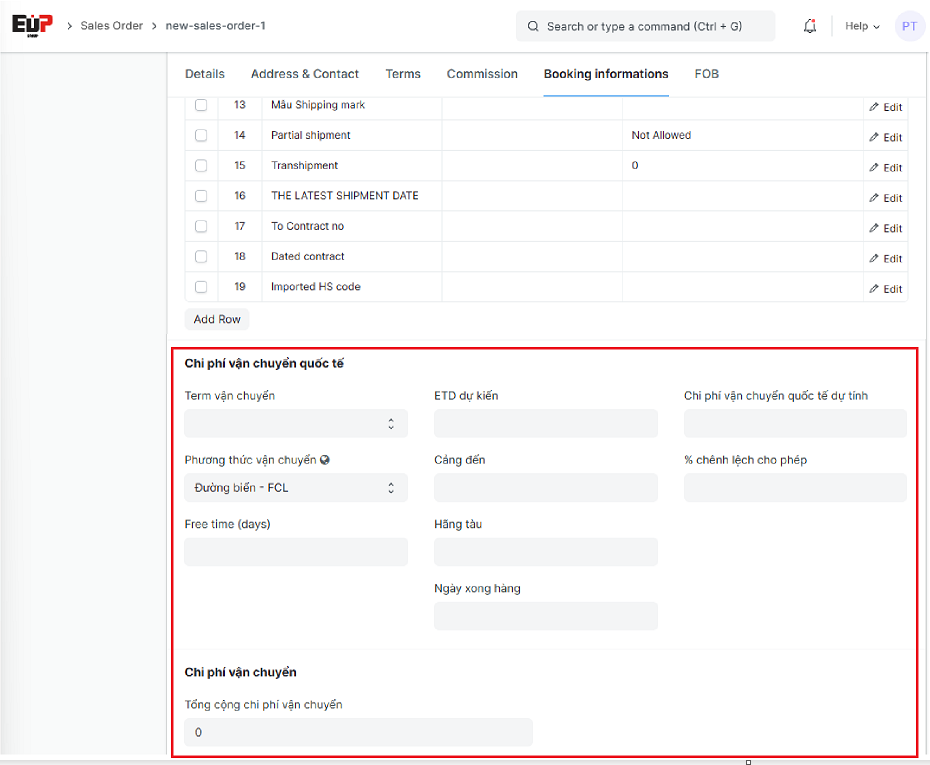
Term vận chuyển (Shipping term):
Phương thức vận chuyển (Shipping method):
Free time (days):
ETD dự kiến (Expected ETD):
Cảng đến (Port of Discharge):
Hãng tàu (Shipping Lines):
Ngày xong hàng (Completition date):
Chi phí vận chuyển quốc tế dự tính (Estimated international shipping costs):
% chênh lệch cho phép (allowable percentage difference):
Tổng cộng chi phí vận chuyển (Total shipping costs):
Step 14: Enter Sales Taxes and Charges (if any): Click on "Add row" to add one Tax/Charge row, enter Taxes and Charges details
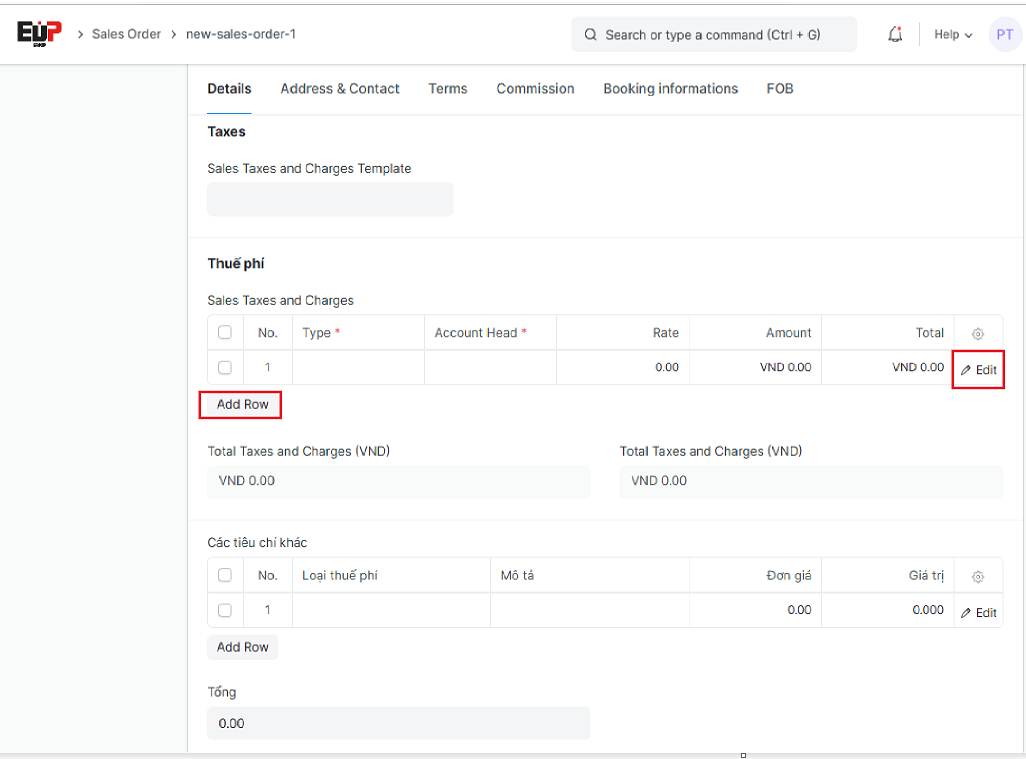
Type: As a tax base
Account Head: is a tax-recording accounting account
Rate: is the tax/charge unit price
Amount: Is the value of tax/charge calculated according to the unit price and the basis for calculation
Total: Is the total value of the sales order including taxes/charges
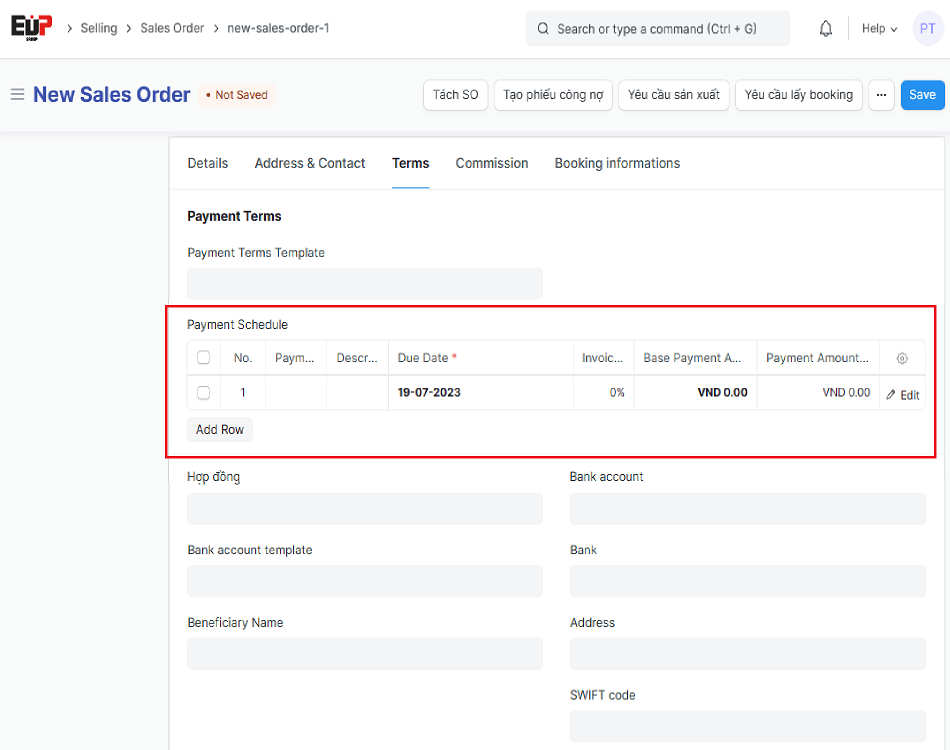
Step 15: Enter payment terms details: Select available payment terms template or create a new
Enter information about payment terms template for the sales order: Payment terms template need to be created first, if not available, drag the cursor down to the end => click on "Create a new payment terms template" to create a new

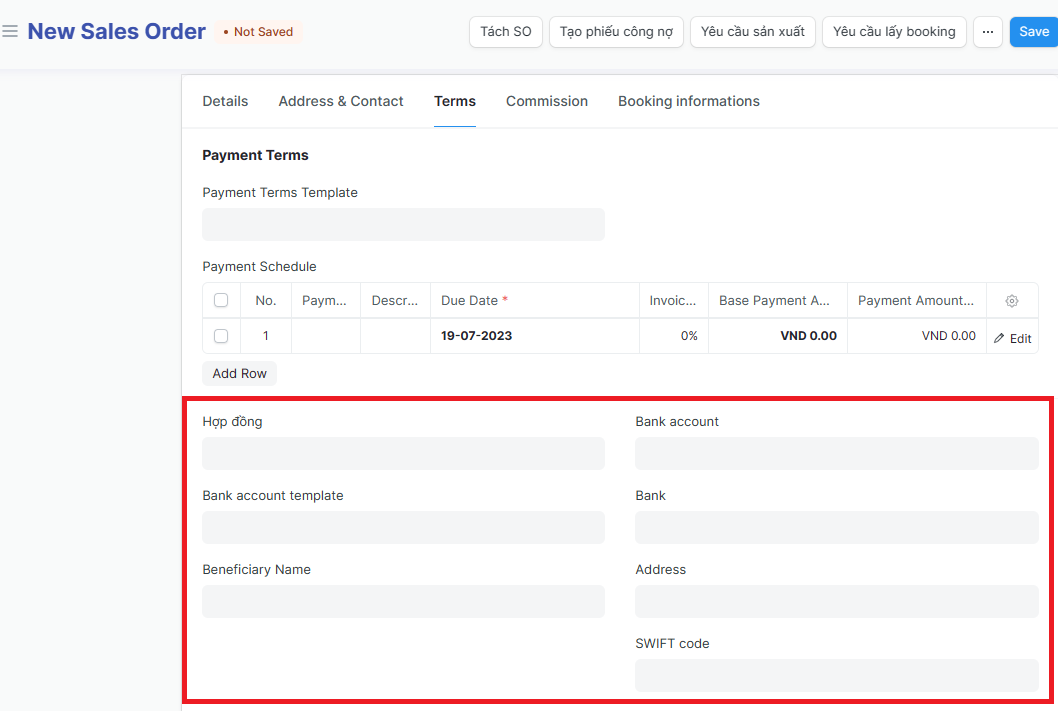
Step 16: Enter Contract information:
The information of the contract information section is used to display the print information of the PI/Sales contract printout
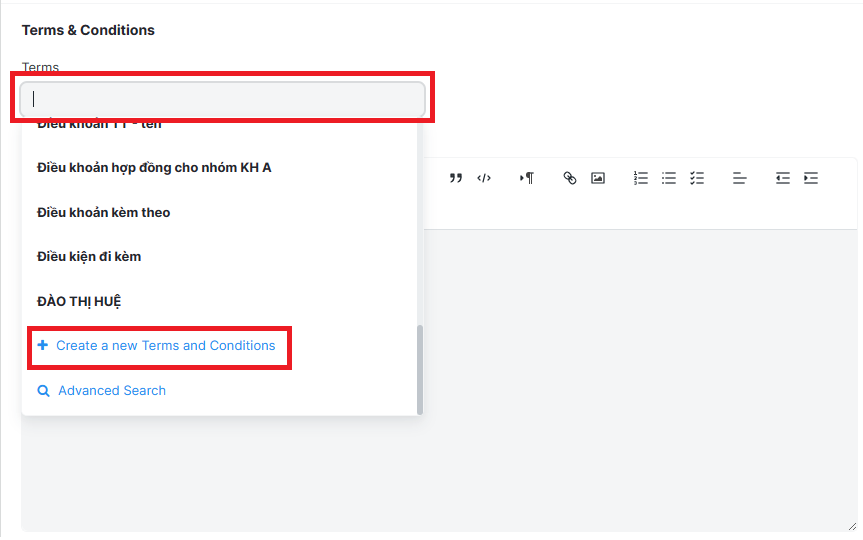
Step 17: Enter Term & conditions: Select available terms or create a new by drag the cursor down to the end => click on "Create a new payment terms template"
The information in the "Terms & Conditions" section is used to display the Conditions attached to the quotation on the printout of "Price made to sales order"
Step 18: Enter sales commission details if any:
Enter only 1 of 2 methods to calculate agent commission: on the total order, or in units
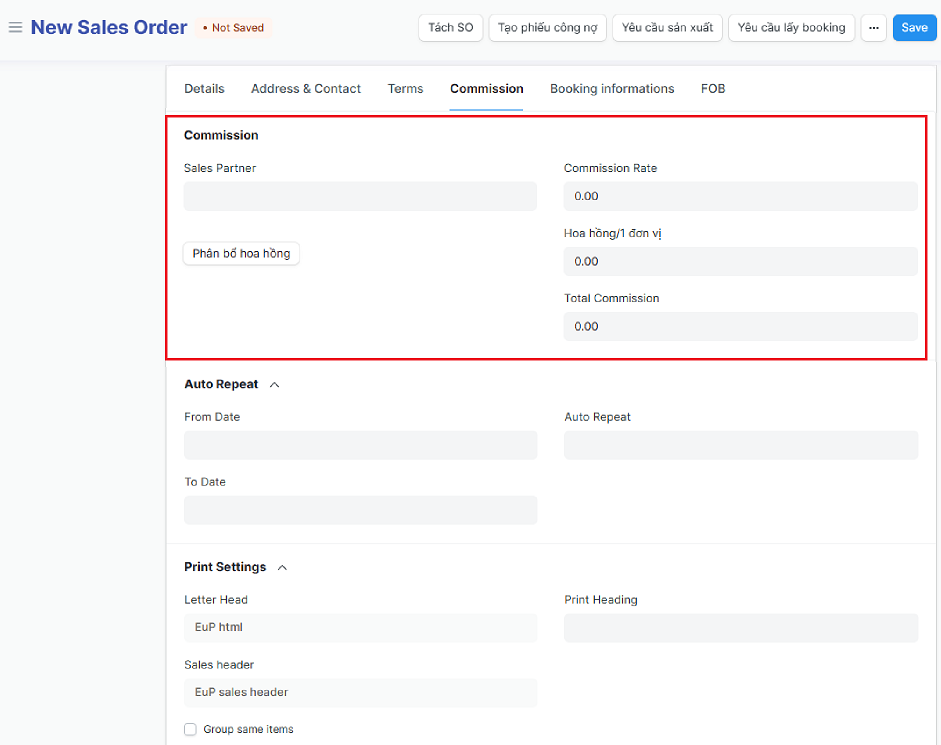
Sales Partner: Is the information of the recipient of the sales commission; need to create first, or create as soon as you enter the sales order
Commission Rate: Commission percentage on total sales order
Hoa hồng/1 đơn vị (Commission/Unit): Commission per 1 unit of product sold
Total Commission: Total commission paid to the agent
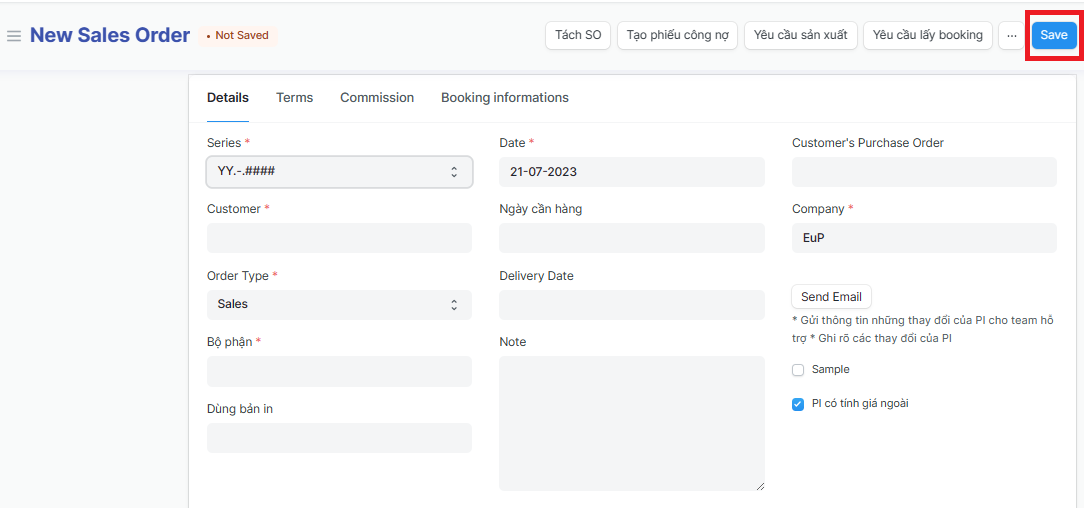
Step 19: Click on "Save" to save the generated sales order
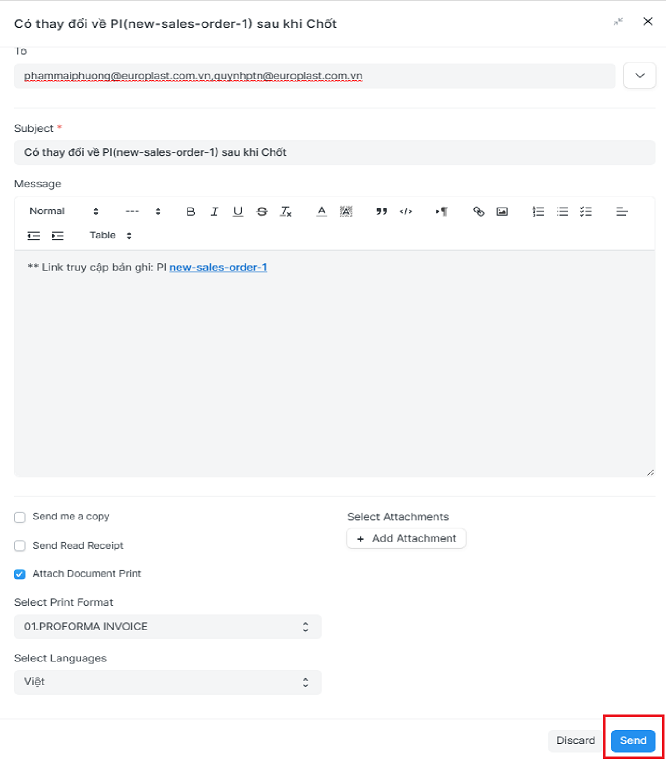
Step 20: Click on "Send email" to send email to relevant departments
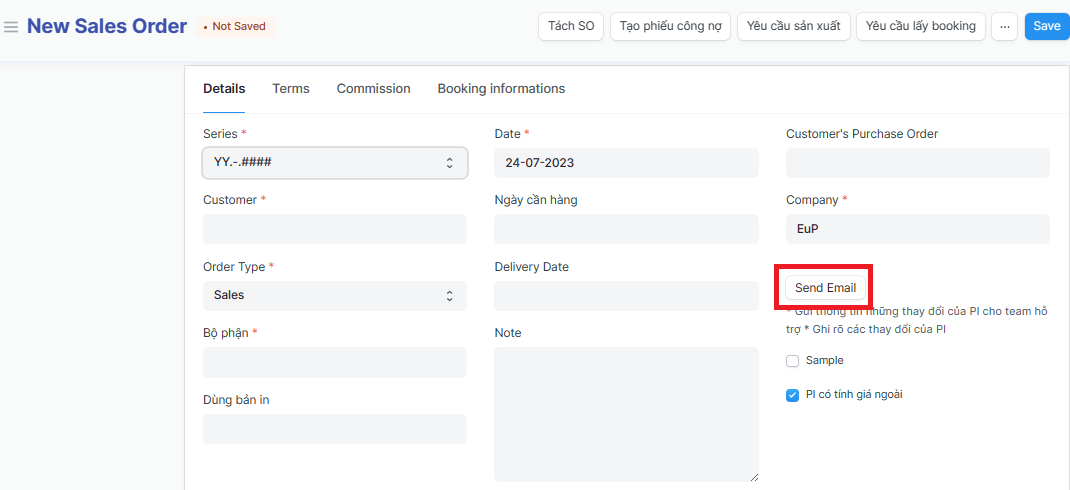
Click on "Send email" to send emails to relevant departments after the Sales order has been closed but there is a change in information to be notified (Click on Send email => Enter informations: Email address, subject, note.... => Click on "Send")